
A Zoho to Salesforce migration usually starts when a growing team outgrows its first CRM. Sales wants deeper forecasting, operations wants stricter automation, and finance wants cleaner integration. The hard part is moving years of leads, deals and activity history without breaking the links between them.
Gartner's 2017 Data Quality Market Survey put the average annual cost of poor data quality at $15 million per organization. This Zoho to Salesforce migration guide covers module mapping, export limits, tools and load order. It ends with the checks that prove the move worked.
Key Takeaways
- A Zoho to Salesforce migration stays traceable when every Zoho record ID lands in a Salesforce External ID field.
- Zoho caps each CSV export at 200,000 records per module, so large modules need split exports or a full backup.
- Load parent records before children, rehearse in a sandbox, then reconcile counts and samples before go-live.
What Does a Zoho to Salesforce Migration Involve?
A Zoho to Salesforce migration moves your records, files and business rules from Zoho CRM into a Salesforce org. It covers three layers: data, configuration and automation.
Data means the records themselves, from leads to invoices. Configuration means fields, picklist values, record types, page layouts and security. Automation means the workflow rules, Zoho Blueprint processes and Deluge scripts that act on those records every day.
Each layer moves differently. Records travel as CSV files or through an API connection. Configuration is rebuilt by hand in Salesforce Setup, because no tool copies a Zoho layout into a Salesforce page layout. Automation is redesigned in Salesforce Flow or, for complex logic, written in Apex.
The scope of a Zoho CRM to Salesforce migration also includes people. Users need Salesforce licences, profiles, permission sets and role hierarchy before any record arrives. Record owners must exist first, or every imported record defaults to the person running the load.
Most projects treat the move as three linked workstreams:
- Data migration: export, clean, map, load and validate every module you keep.
- Platform build: objects, fields, record types, layouts, sharing and reports in Salesforce.
- Process rebuild: automation, integrations, email templates and user training.
Running these streams one after another adds weeks. The platform build and the data mapping can start together, because both depend on the same field inventory.
Why Do Teams Move From Zoho CRM to Salesforce?
Teams usually switch from Zoho to Salesforce when their sales process outgrows their Zoho edition. The gap shows up in customization, integration or reporting depth. Price is rarely the trigger. A process the current system cannot support cleanly is.
The common reasons fall into four groups:
- Process complexity: multi-stage approvals, territory rules or partner deals that need record types and Salesforce Flow.
- Integration needs: an ERP, a CPQ tool or a data warehouse with a stronger Salesforce connector.
- Reporting: forecasts, pipeline snapshots and cross-object reports that leadership expects.
- Company change: an acquisition or a parent company that already runs Salesforce Sales Cloud or Service Cloud.
Each reason shapes the project. A team moving for reporting must protect stage history and close dates. A team moving for integration must map account and product codes exactly.
Write the reason down before mapping a single field, because it decides which data is worth migrating. A Zoho to Salesforce migration that skips this step tends to copy old problems into the new system.
The decision also has a cost side. Salesforce licences, a partner and internal time all add up. Our CRM consulting and implementation services start with that business case. The Zoho to Salesforce migration plan then follows the processes that justified it.
How Do Zoho Modules Map to Salesforce Objects?
Most Zoho modules have a direct Salesforce equivalent, so data mapping starts with a module-to-object table. The table below covers the Zoho CRM standard modules that B2B teams use most.
| Zoho CRM module | Salesforce object | Mapping note |
|---|---|---|
| Leads | Lead | Keep lead source and status values |
| Accounts | Account | Load first; parent account is a self-lookup |
| Contacts | Contact | Needs the Account external ID |
| Deals | Opportunity | Map stages to sales process values |
| Tasks | Task | Related To becomes WhatId or WhoId |
| Calls and Meetings | Task and Event | Calls usually become completed tasks |
| Products and Price Books | Product and Price Book | Create Price Book Entries after both |
| Quotes | Quote | Needs Opportunity and line items |
| Cases and Solutions | Case and Knowledge | Check Service Cloud and Knowledge licences |
| Campaigns | Campaign | Members load as Campaign Members |
Zoho deals to Salesforce opportunities is the mapping that needs the most care. Zoho stage names rarely match a Salesforce sales process one for one. Build a stage translation table, including probability and forecast category, before any deal moves.
Zoho leads to Salesforce leads is simpler, with one trap. Zoho converts a qualified lead into a Contact, Account and Deal. Converted leads already exist as those records, so open leads are usually the only ones worth migrating.
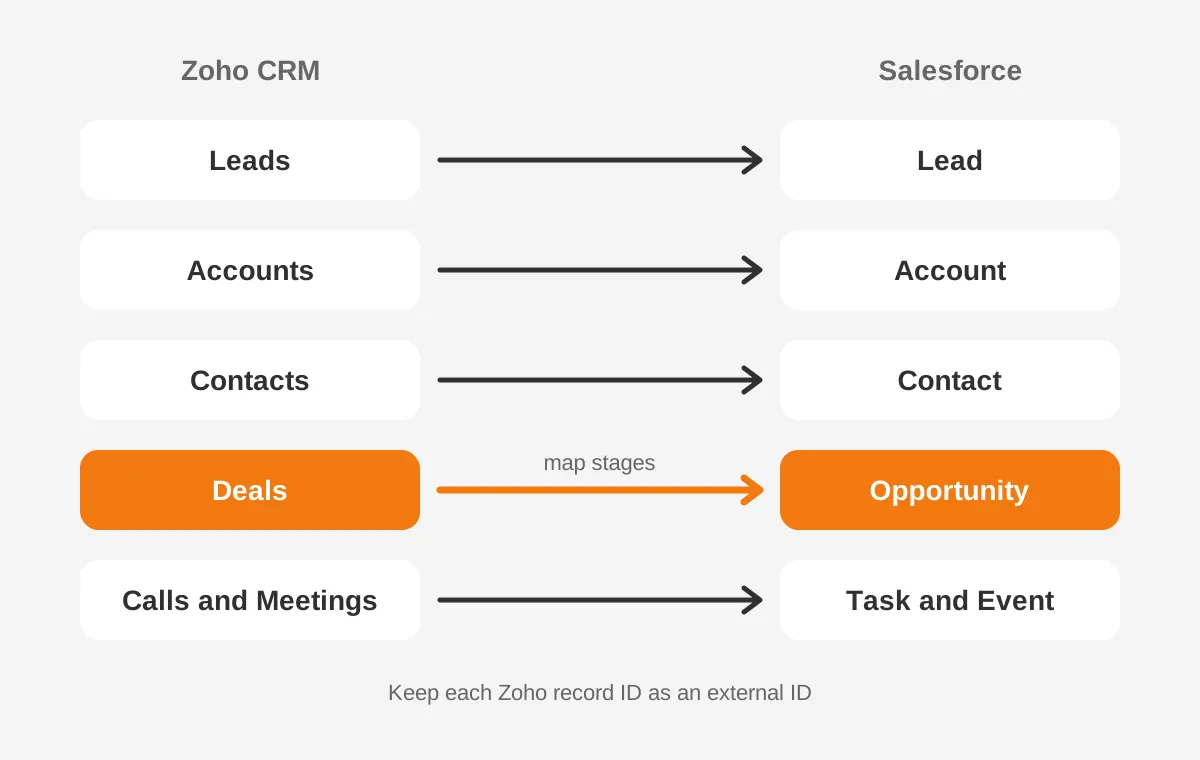
Zoho to Salesforce field mapping follows the object mapping. List every Zoho field per module with its type, picklist values and fill rate. A field that is empty in 95% of records rarely earns a place in Salesforce.
Custom Zoho modules usually become Salesforce custom objects with lookup relationships to Account or Opportunity.
How Do You Export Data From Zoho CRM?
You export data from Zoho CRM in two ways: a module export or a full data backup. The module export suits targeted pulls. The backup suits a complete Zoho CRM backup before cutover.
The module export lives under Setup, then Data Administration, then Export. Per the Zoho CRM export documentation, these Zoho CRM export limits apply:
- CSV exports hold up to 200,000 records from one module at a time.
- XLSX exports hold up to 50,000 records.
- Each export includes up to 200 fields.
- Daily export counts depend on edition: 100 on Standard, 250 on Professional, 500 on Enterprise and 1,000 on Ultimate.
- Download links stay valid for seven days.
- Users need the Export permission for each module.
Modules above 200,000 records need split exports. Zoho suggests filtering by Created Time, so each file covers a date range. Notes export separately, with up to 3,000 notes at a time.
The Zoho data backup is the safer choice for the final load. Per the Zoho CRM data backup guide, admins request it under Setup, Data Administration, Data Backup. The output is CSV files in a ZIP archive, with data and attachments grouped into separate ZIP folders.
Ultimate includes four free backups and other paid editions include two. Spend them deliberately, because a migration needs at least two.
Open each CSV before mapping. Check date formats, currency fields, multi-select picklists and line breaks inside text fields. Zoho's export help advises checking regional settings when delimiters or Excel compatibility cause problems. Fixing these in the file is faster than reading hundreds of Data Loader errors later.
Take one backup at the start for mapping and testing. Take a second backup at cutover for the production load. Store both outside Zoho, because the download link expires after seven days. In a Zoho to Salesforce migration, that final backup is also your rollback copy.
Which Tools Handle a Zoho to Salesforce Migration?
The right tool for a Zoho to Salesforce migration depends on record volume and object count. The need for repeatable loads also matters. Salesforce offers two native options, and third-party platforms cover the rest.
The Salesforce Trailhead data import module sets the boundary. The Data Import Wizard handles up to 50,000 records at a time for common standard objects and custom objects. Salesforce Data Loader handles 50,000 to 150 million records and supports scheduled loads.
| Tool | Best fit | Limits to plan for |
|---|---|---|
| Data Import Wizard | Small orgs, leads, contacts and accounts | 50,000 records per import; fewer objects |
| Salesforce Data Loader | Most migrations, every object | Desktop app; manual mapping files |
| Bulk API 2.0 scripts | Large volumes, repeat test loads | Needs a developer |
| Skyvia, Talend, MuleSoft | Transformations and direct Zoho connectors | Licence cost; setup time |
Salesforce Data Loader is the default for a Zoho CRM to Salesforce migration of any size. It works on Windows and Mac and supports every object, including custom objects. It runs insert, update, upsert, delete and export operations.
With Bulk API 2.0, Data Loader handles files of up to 150 million records. That removes the 50,000-record ceiling of the wizard.
Third-party migration tools add value when the data needs heavy transformation. Skyvia and Talend can read from Zoho CRM directly, which removes the CSV step. MuleSoft fits teams that will also run ongoing integrations after go-live. Pick these when the same transformation runs more than twice.
A simple decision rule works for most teams. Under 50,000 records in four objects or fewer, use the wizard. Above that, use Data Loader with upsert.
Above five million records, script the Bulk API or use a connector. The same applies to daily delta loads during a parallel run. Almost every Zoho to Salesforce migration fits one of these three bands.
What Are the Zoho to Salesforce Migration Steps?
A Zoho to Salesforce migration follows seven steps, from inventory to go-live. Each step has an owner and an exit check, and the next step waits until that check passes.
- Inventory: list every Zoho module, field, workflow, integration and user, with record counts.
- Clean: remove duplicates, fix formats and archive records nobody needs, before export.
- Map: build the object, field and picklist mapping, including owner and stage tables.
- Build: create fields, record types, layouts, sharing and External ID fields in Salesforce.
- Test load: load a sample into a Salesforce sandbox, then fix every error.
- Final load: take the final Zoho backup, freeze Zoho edits and load in dependency order.
- Validate and go live: reconcile counts, check samples, train users and switch off Zoho access.
Step two saves the most time. Cleaning in Zoho before export is faster than fixing records after they arrive. Our CRM data cleansing runbook lists the deduplication and format checks to run first.
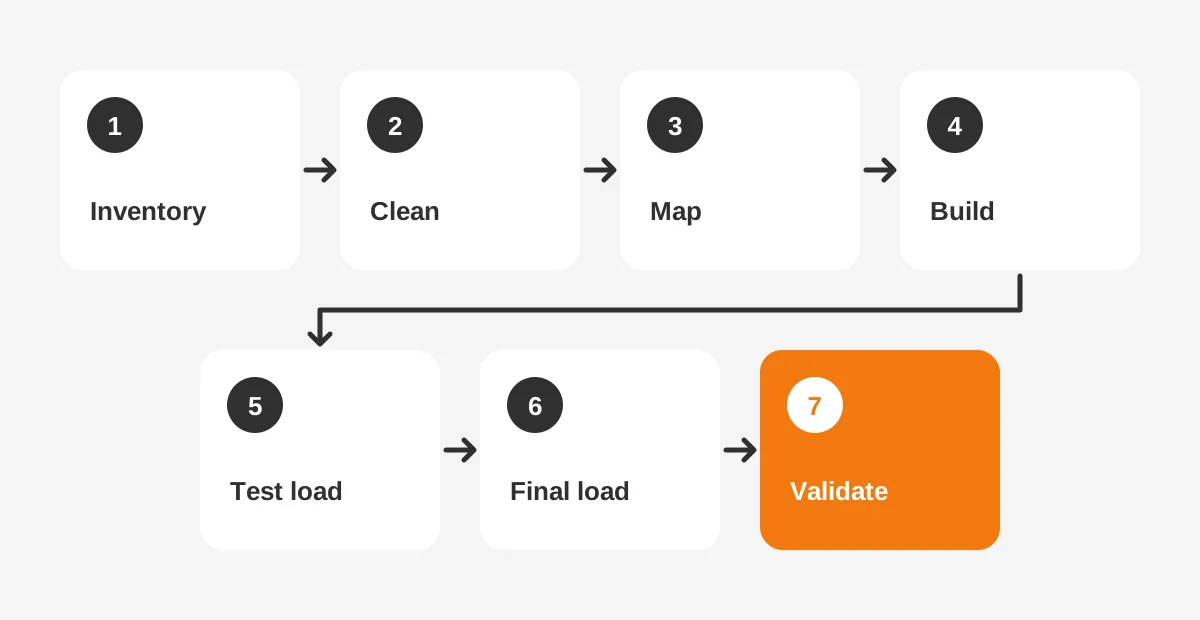
A Zoho to Salesforce migration checklist turns these steps into tasks. Add the owner, due date and exit check for each line. Skipped test loads and unmapped picklists are two frequent causes of failure. Our guide to common CRM migration mistakes covers both.
The automation rebuild runs alongside steps four and five. Zoho workflows to Salesforce Flow is not a copy job. List each workflow rule, its trigger and its action, then decide whether it still serves a purpose.
Blueprint processes often map to a Flow plus validation rules, and Deluge scripts usually become Apex or invocable Flows.
How Do You Keep Record Relationships Intact?
You keep record relationships intact by loading parents before children. Each Zoho record ID goes into a Salesforce External ID field. This lets child records find their parents by the old Zoho ID instead of a new Salesforce ID.
The Salesforce data migration best practices article gives the rule. Migrate objects in dependency order, store legacy IDs in custom fields and mark those fields as External IDs. That enables upsert in Data Loader and helps prevent duplicates.
Upsert matches on the external ID. A record with no match is created, and a record with one match is updated. A value matched more than once returns an error, which flags duplicate IDs before they spread.
In a Zoho to Salesforce migration, the Zoho record ID is the only key both systems share.
A working load order for this migration looks like this:
- Users and roles
- Accounts, then parent account links
- Contacts and open leads
- Products, Price Books and Price Book Entries
- Opportunities, then opportunity line items
- Quotes, Cases and Campaign Members
- Tasks, events, notes and files
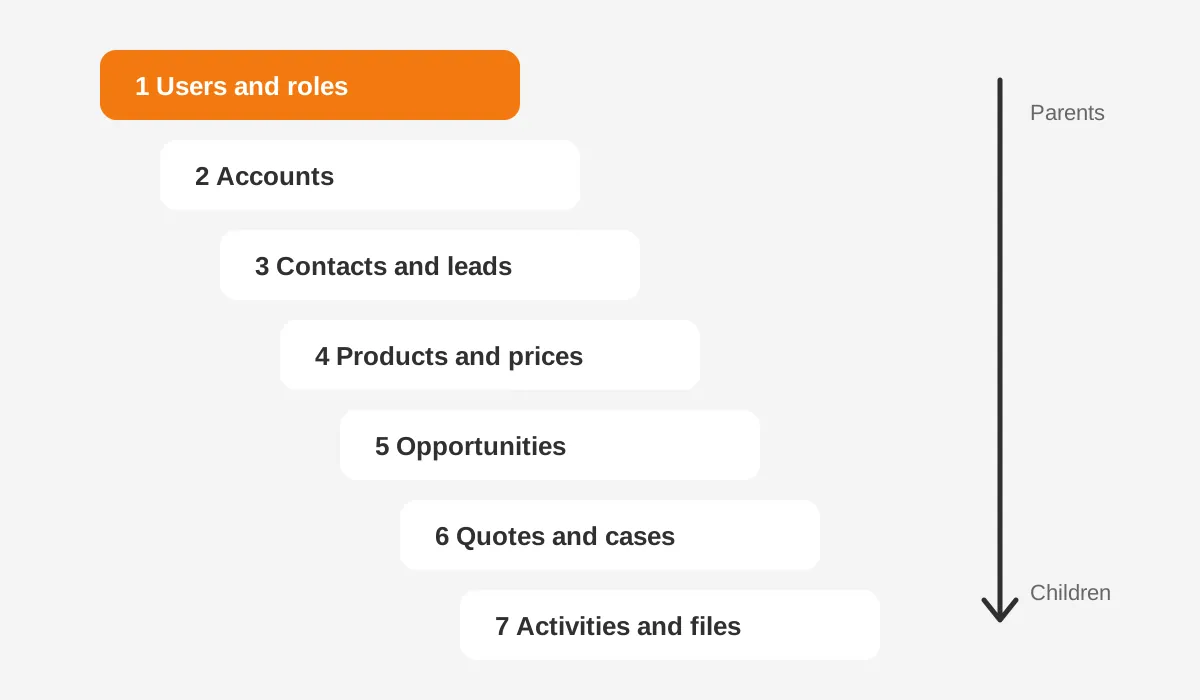
Activity history and email history load last, because each task points at a contact, lead, account or opportunity. Zoho notes to Salesforce become Notes or ContentNote records. Zoho attachments become Salesforce Files, stored as ContentVersion records linked to their parent.
Dates need one more decision. Salesforce sets Created Date to the load date by default. To keep the original Zoho dates, Salesforce Support must enable the Create Audit Fields permission. Audit fields can only be set when a record is first created.
How Do You Validate the Migrated Data?
You validate the migrated data by comparing record counts, sampling records field by field and reviewing every error log. Validation should finish before users log in, not after they report problems.
Run three checks for each object:
- Counts: compare Zoho export counts with Salesforce report counts. The difference should equal the records you chose to exclude.
- Samples: open 25 records per object in both systems and compare every mapped field, owner and related list.
- Errors: read every Data Loader error file, fix the cause and reload only the failed rows.
Add business checks on top of data checks. Total open pipeline by stage should match between systems. Account counts by owner should match. A sales manager should recognise their top 20 deals, with the right amounts and close dates.
Picklist values deserve their own check. Run a report grouped by each mapped picklist and compare it with the Zoho values. A value missing from Salesforce usually means a load fell back to a default.
Data validation also covers duplicates. Switch on Salesforce duplicate rules after the bulk load, not during it. Active duplicate rules can block legitimate records halfway through a Zoho to Salesforce migration.
Plan the rollback before cutover. Keep Zoho read-only for at least 30 days after go-live, with the final backup stored safely. If a critical defect appears, the team can return to Zoho while the defect is fixed. A short parallel run with daily delta loads lowers this risk further.
Our guide to Salesforce data migration before, during and after the move covers post-load checks in more depth.
How Long Does a Zoho to Salesforce Migration Take?
A Zoho to Salesforce migration takes as long as its data volume, automation count and integrations demand. No single figure fits every org, so estimate from your own inventory rather than a vendor average.
Here is a worked example with assumed figures for illustration only. A 60-user distributor has 180,000 accounts and contacts, 40,000 deals, 900,000 activities and 25 workflow rules. Two integrations connect Zoho to an ERP and an email tool.
| Phase | Weeks (example) | Main output |
|---|---|---|
| Inventory and cleanup | 2 | Field inventory, duplicate fixes |
| Mapping and build | 3 | Mapping workbook, Salesforce config |
| Automation and integrations | 3 | Flows, ERP connector |
| Test loads | 2 | Two clean sandbox rehearsals |
| Cutover, validation, training | 2 | Production data, trained users |
That Zoho to Salesforce migration example lands at 12 weeks. A 10-user team with 20,000 records and no integrations might finish in five or six weeks. A team with custom modules, Service Cloud cases and five integrations should plan for longer.
Cost follows the same drivers. Salesforce licences, partner hours, migration tool licences and internal time are the four lines to price. The Salesforce CRM services team at Unboxx scopes these lines after the inventory, when record counts and automation are known.
Who Should Run Your Zoho to Salesforce Migration?
A Zoho to Salesforce migration needs four roles, whether staff or a partner fills them. The roles matter more than the headcount.
- Project owner: a sales or operations leader who decides scope and signs off each phase.
- Salesforce admin or architect: builds objects, fields, security and Flows.
- Data lead: owns the mapping workbook, the loads and the reconciliation reports.
- Super users: two or three people from sales who test records and train colleagues.
An in-house team can run a small Zoho to Salesforce migration with standard modules and no integrations. The risk rises with custom modules, Deluge functions and ERP links. Those projects benefit from someone who has rehearsed the load order before.
User adoption decides whether the move pays off. Involve super users in the test loads, so they see their own accounts and deals early. Train each team on the screens they will use daily, not on every feature.
A partner should hand over the mapping workbook, load files and Flow documentation at the end. Those assets let your admin run future loads and audits without outside help. Ask for them in the statement of work before the Zoho to Salesforce migration starts.
Frequently Asked Questions
Can you migrate Zoho attachments to Salesforce?
Yes, Zoho attachments can move to Salesforce as Files. Request a full Zoho data backup, which places attachments in a separate ZIP folder. Load each file as a ContentVersion record, then link it to its parent using the stored Zoho record ID. Check file size limits before loading.
What data should you migrate from Zoho?
Migrate the data your team still uses. That means active accounts, contacts, open leads, recent deals and their activities. Archive closed records older than your reporting window as a CSV backup. Smaller loads finish faster, cost less and give users a cleaner Salesforce from day one.
How much does a Zoho to Salesforce migration cost?
Zoho to Salesforce migration cost depends on record volume, custom modules, automation and integrations. Price four lines: Salesforce licences, partner or consultant hours, migration tool licences and internal staff time. A small move with standard modules costs far less than one with custom objects, Service Cloud and ERP integration.
Can Zoho and Salesforce run in parallel?
Yes, a short parallel run is common. Keep Zoho read-only or limited to one team. Run daily delta loads into Salesforce, using upsert on the Zoho record ID. Keep the parallel window short, ideally two weeks, because double entry frustrates users and creates conflicting records.
Do Zoho workflows transfer to Salesforce automatically?
No, Zoho workflows, Blueprint processes and Deluge functions do not transfer automatically. Each one is rebuilt in Salesforce, usually as a Flow, validation rule or Apex class. Review every workflow before rebuilding it. Rules nobody relies on should be retired rather than recreated in Salesforce.
Ready to Plan Your Zoho to Salesforce Migration?
A Zoho to Salesforce migration succeeds when the data is clean, the mapping is written and every load is rehearsed. Start with the inventory, because record counts, workflows and integrations shape every estimate that follows.
Unboxx is a Salesforce Crest Partner and CRM consultancy working across Salesforce, HubSpot, Dynamics 365 and Odoo. Our HubSpot to Salesforce migration guide shows how a similar move works. To scope your Zoho to Salesforce migration, schedule a consultation with the team.
Let's create something out of this world together.
Have a project in mind? Contact us for expert design and development solutions. Let's discuss how we can help grow your business.
Ready to Unboxx Your Potential?
Build smarter systems. Automate faster. Scale confidently.