
A sales team exports its deals from Pipedrive, imports them into HubSpot, and opens the first record. The deal is there, but its calls, notes and files are missing. Pipedrive's help centre explains why: activities, notes and files linked to deals and contacts must be exported separately (Pipedrive, 2026).
A Pipedrive to HubSpot migration moves people, organizations, deals, products and activity history into HubSpot's object model. It runs in a set order, with checks at each step. The export is the quick part. Mapping and load order decide whether the history survives the trip.
Key Takeaways
- A Pipedrive to HubSpot migration succeeds or fails on the field mapping and import order, not on the export.
- CSV import moves records well, but activity history needs HubSpot Smart Transfer, the Data Sync app or the API.
- Run a test import, a reconciliation and a short parallel run before HubSpot becomes the system of record.
What Does a Pipedrive to HubSpot Migration Involve?
A Pipedrive to HubSpot migration involves five jobs: audit, mapping, export, import and cutover. Each job has an owner and a pass condition. Skipping the audit or the mapping is the usual reason a Pipedrive to HubSpot migration gets repeated.
The two platforms store the same sales facts in different shapes. Pipedrive is built around deals moving through a pipeline. HubSpot is built around contacts, companies, deals and tickets, joined by associations. A Pipedrive to HubSpot migration translates one shape into the other.
The work sits with three groups. A sales operations lead owns the field mapping and the pipeline design. A HubSpot admin or CRM consulting partner runs the imports and the sync. Sales managers sign off on deal stages, owners and the open pipeline value before cutover.
Three questions shape the scope before any file is exported:
- What is the record count in each Pipedrive object, and which records are worth keeping?
- How much activity history does the team need on day one?
- Which tools connected to Pipedrive must reconnect to HubSpot?
The answers decide the method for the Pipedrive to HubSpot migration. A small account with clean data and little history can move by CSV in a week. An account with years of calls, emails and notes needs a sync tool or the API. Both routes follow the same mapping rules.
Teams that migrate from Pipedrive to HubSpot also decide which hubs to switch on. HubSpot keeps marketing, sales and service activity on one contact timeline. Each hub the team adopts adds properties, permissions and training to the build, so scope them before mapping starts.
How Do Pipedrive Objects Map to HubSpot Objects?
Pipedrive People map to HubSpot Contacts, Organizations map to Companies, and Deals map to Deals. Products map to Products, and products attached to deals become line items. HubSpot's own Smart Transfer documentation (HubSpot, 2026) lists these pairs for Pipedrive.
The same page maps call, meeting, task and email activities to their HubSpot equivalents. Pipedrive notes become HubSpot notes. Currencies and users also transfer, so owners can stay attached to records.
| Pipedrive object | HubSpot object | What to decide |
|---|---|---|
| People | Contacts | Lifecycle stage and lead status values |
| Organizations | Companies | Company domain for matching |
| Deals | Deals | Pipeline, stage mapping and owner |
| Leads (Leads Inbox) | Contacts at an early lifecycle stage | Whether to keep unqualified leads |
| Products | Products and line items | Price and SKU fields |
| Activities | Calls, meetings, tasks, emails | How much history to move |
| Notes | Notes | HTML or plain text |
| Custom fields | Custom properties | Field type and dropdown values |
Pipedrive's Leads Inbox has no matching object in HubSpot. A lead usually becomes a contact at the Lead lifecycle stage. Decide this rule before the export. It changes how the leads file is shaped. One workable rule is to import only leads touched in the last 12 months.
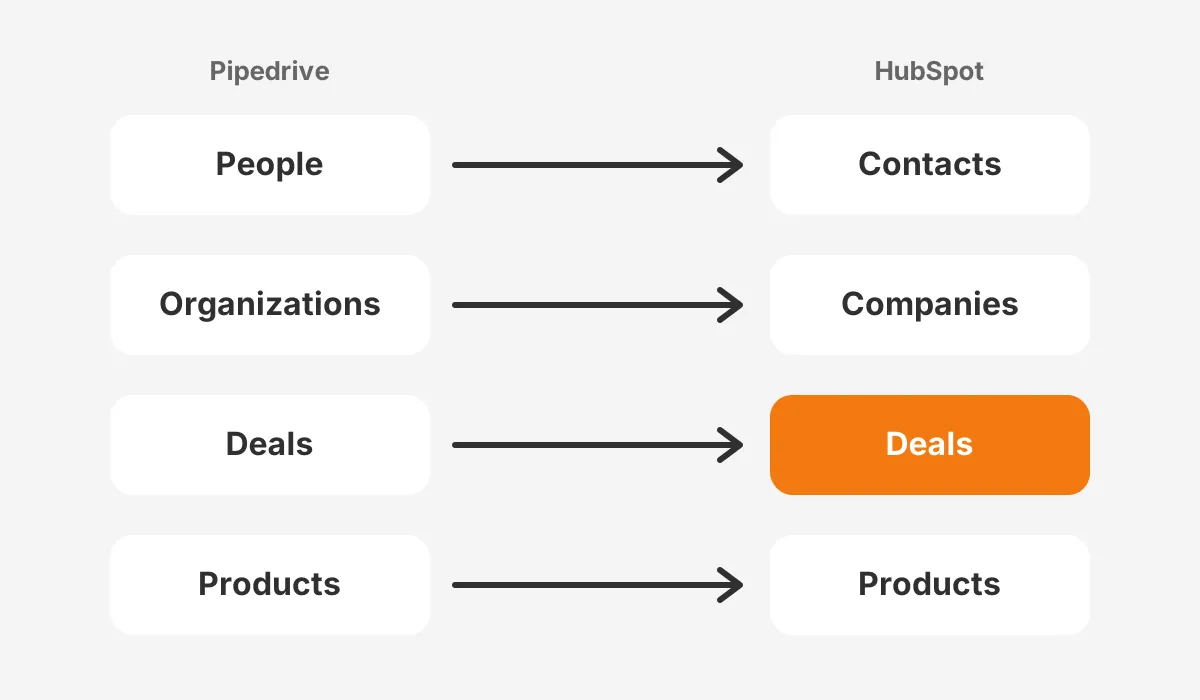
Custom fields need the most care. Each Pipedrive custom field becomes a HubSpot custom property with the same field type. A dropdown stays a dropdown, a date stays a date, and every dropdown value must exist in HubSpot before import.
HubSpot custom objects are a separate case. Smart Transfer does not move custom objects, according to the same HubSpot page. Any Pipedrive data that the team wants as a custom object needs a custom import or API work.
What Should You Audit Before Exporting Pipedrive Data?
Audit record counts, duplicates, field usage, pipelines and owners before a Pipedrive to HubSpot migration exports anything. The audit tells the team what to move, what to fix in Pipedrive first and what to leave behind.
Use this data audit checklist inside Pipedrive:
- Count records in People, Organizations, Deals, Leads, Products and Activities.
- List every custom field, its type and how often it is filled.
- Find duplicate people by email and duplicate organizations by name or website.
- Write down every pipeline, its stages and each stage's probability.
- Check which users still work at the company and own open deals.
- Note every rotting setting, automation and connected app.
Pipedrive's rotting feature marks deals idle beyond a set number of days per stage. HubSpot has no setting with that name. Teams rebuild it as a HubSpot workflow or a saved view of deals with no recent activity.
Fields filled on under 5% of records are candidates to drop. Each field moved adds a property, a mapping row and a test. A shorter property list also makes HubSpot easier for reps to adopt.
Clean duplicates in Pipedrive, not in HubSpot. Merging two people in the source keeps their deals and activities together. Merging after import means re-linking history by hand. The CRM data cleansing runbook covers the merge rules in detail.
How Do You Export Data From Pipedrive?
Export data from Pipedrive in the Export data section of settings. Export one data type at a time, as Excel or CSV. Pipedrive says only global admins and users with the right permissions can export.
The same Pipedrive export article lists these data types: Leads, Deals, Organizations, People, Products, Activities, Projects, Notes and Files. Notes export as HTML or plain text. Files export by the date they were added.
Three export rules catch teams out:
- Exported files stay available for 28 days, so the import window is finite.
- Files stored in Google Drive are not part of the global export.
- A user sees only the data visible to that user, so admins should run the export.
Keep the Pipedrive record ID column in every file. The ID links a deal to its person and organization during import. It also gives the team a key for re-running a single object if a load fails.
Pick CSV for every file in the Pipedrive to HubSpot migration. CSV avoids hidden formatting from Excel, such as dates converted to serial numbers. Save the raw exports untouched, then work on copies.
Which Migration Method Fits Your Pipedrive Account?
The right Pipedrive to HubSpot migration method depends on record volume and how much activity history must move. Three methods cover most accounts: CSV import, a HubSpot sync tool, and the HubSpot API.
| Method | Moves well | Limits | Fits |
|---|---|---|---|
| CSV import | Contacts, companies, deals, products | Activity history is hard to rebuild | Small accounts with clean data |
| Smart Transfer or Data Sync app | Records plus calls, meetings, tasks, notes | Activity sync needs a Data Hub subscription | Accounts that need history on day one |
| HubSpot API | Anything, including custom objects | Rate limits and developer time | Large or heavily customized accounts |
HubSpot's import file rules (HubSpot, 2026) allow .csv, .xlsx or .xls files with one sheet and fewer than 1,000 columns. HubSpot import file limits on paid accounts are 512 MB and 1,048,576 rows per file. Free tools stop at 20 MB.
The sync route uses HubSpot's Pipedrive connector. Its marketplace listing (HubSpot, 2026) says the sync can run one way or both ways. It also says existing data syncs right away. Activity sync and custom field mappings need HubSpot Data Hub Starter or above.
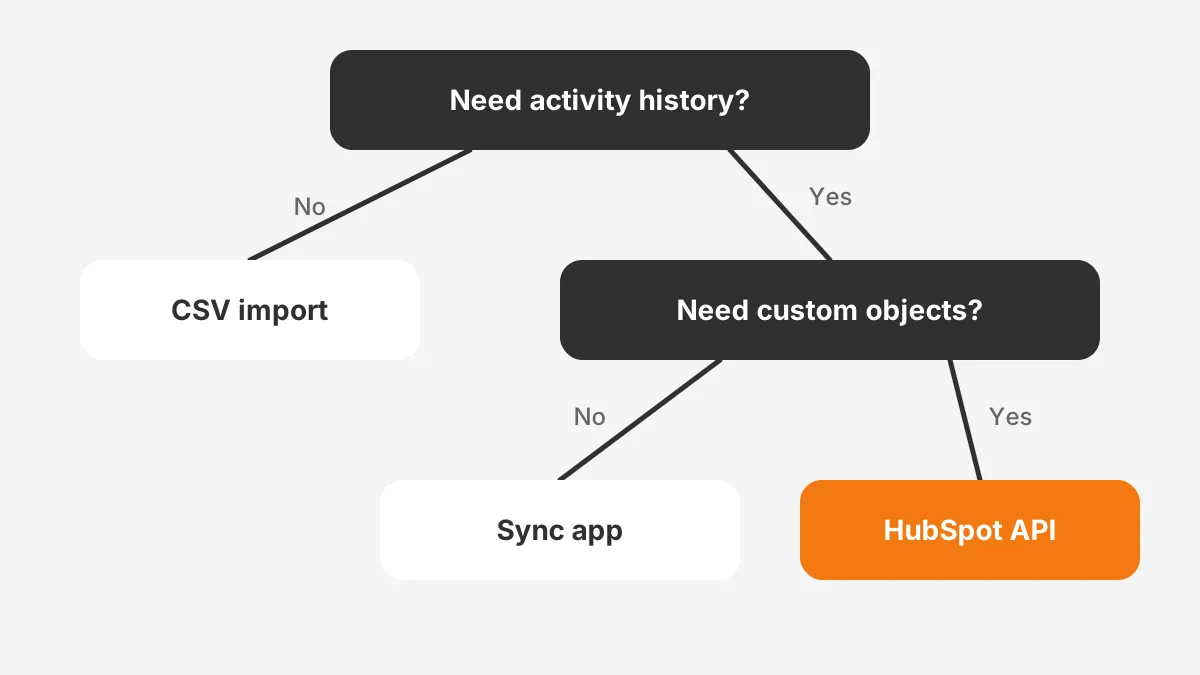
The API route suits custom objects, unusual data shapes or histories in the millions of rows.
HubSpot's API usage limits (HubSpot, 2026) give private apps on Professional 190 calls per 10 seconds. The daily cap is 625,000 calls. A script that exceeds those HubSpot API rate limits gets 429 errors and must back off.
The decision itself is short. If the team needs no activity history, use CSV. If it needs history and has Data Hub, use the sync. If it needs custom objects or transforms, budget for API work or a partner.
How Do You Run a Pipedrive to HubSpot Migration?
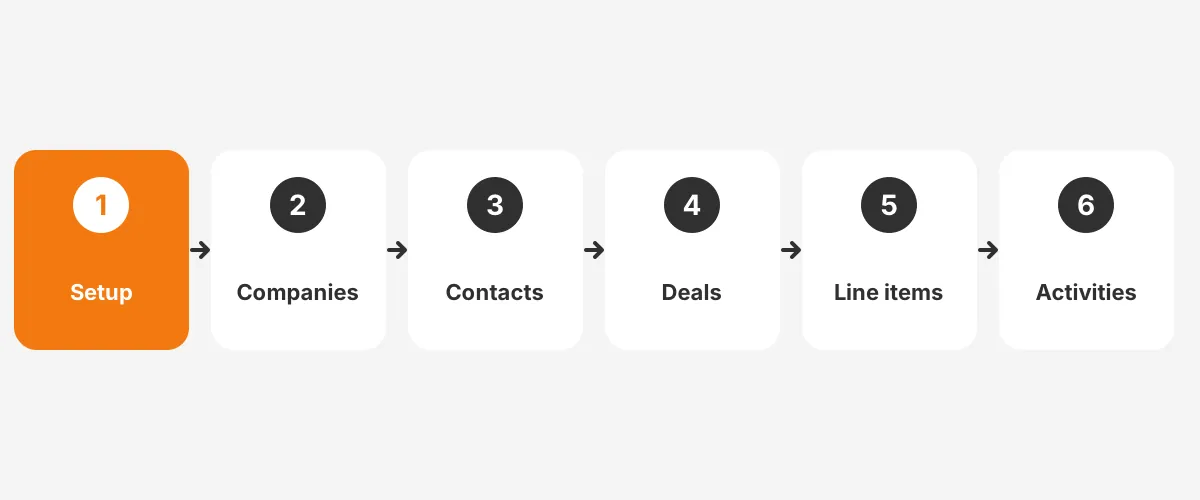
Run a Pipedrive to HubSpot migration in a fixed order. Build HubSpot first, then load companies, contacts, deals, line items and activities. Each object needs its parent in place before it can be associated.
- Create custom properties in HubSpot with matching types and dropdown values.
- Rebuild each Pipedrive pipeline as a HubSpot Sales Hub deal pipeline.
- Add users and set owners so deal and contact owners match.
- Import companies from the Organizations file.
- Import contacts from the People file, associated to companies.
- Import deals, associated to contacts and companies.
- Add products and line items to deals.
- Move activities, notes and files with the chosen sync or API method.
- Run HubSpot duplicate management and fix broken associations.
Run a test import of about 200 records per object before the full Pipedrive to HubSpot migration load. Pick records with long histories, odd characters and custom field values. The test shows mapping gaps while they are still cheap to fix.
HubSpot uses email as the unique identifier for contacts and company domain for companies on import. A Pipedrive person without an email becomes a new contact every time the file is loaded. Clean or flag those rows before the full Pipedrive to HubSpot migration starts.
Store each Pipedrive ID in a HubSpot property, such as Pipedrive Person ID. That property lets the team re-run an import as an update instead of creating duplicates. It also helps reps search old references after cutover.
Set lifecycle stages during the contact import, not afterwards. A person on an open deal becomes an Opportunity. A person on a won deal becomes a Customer. A Leads Inbox record becomes a Lead. These mapping rules keep lists and sales reports correct from day one.
How Do You Move Activities, Notes and Email History?
Move activities, notes and email history after records and associations are in place. Use HubSpot Smart Transfer, the Data Sync app or the API. CSV files carry records well but rarely rebuild a full timeline cleanly.
HubSpot's Smart Transfer page sets clear boundaries for Pipedrive history:
- Email activities sync, but logged emails do not.
- Attachments transfer once, after the sync runs.
- Deal participants become contact associations in a one-time pass.
- Organization relationships become labeled associations.
- Syncing Pipedrive activities requires a Data Hub subscription.
Decide how far back history should go. Some teams move every call and note. Others move 24 months of activity and archive the rest as a file. Every extra year of history adds hours to the load and the checks.
Custom activity types in Pipedrive map to calls, emails, meetings or tasks in HubSpot. Agree on that mapping with sales managers. A Pipedrive type called Site Visit might become a meeting, while Proposal Sent becomes a task.
Files in Google Drive need their own plan, because Pipedrive's global export skips them. Keep them in Drive and link the folder from the HubSpot company record. Moving them adds storage work with little benefit.
What Usually Breaks in a Pipedrive to HubSpot Migration?
The usual failures are broken associations, lost activity history, duplicate contacts and mismatched dropdown values. Each one traces back to a skipped step in the audit, the mapping or the import order.
| Failure | Cause | Prevention |
|---|---|---|
| Deals with no contacts | Deals loaded before contacts | Load parents first and keep Pipedrive IDs |
| Empty timelines | History left in CSV files | Move activities with sync or API |
| Duplicate contacts | People without email addresses | Merge and flag rows in Pipedrive |
| Rejected rows | Dropdown values missing in HubSpot | Create every value before import |
| Wrong owners | Users added after the import | Add users and owners in step three |
The pipeline design carries a quieter risk. A Pipedrive to HubSpot migration that copies every old stage carries old habits into the new CRM. Review stage names and exit criteria with sales managers before the rebuild, not after go-live.
Integrations are the gap teams find last. Calling tools, email sync, forms and quoting apps all point at Pipedrive today. List each one in the audit, then reconnect or replace it in HubSpot during week four of the plan.
A rollback plan limits the damage when a load goes wrong. Keep the raw exports and store every Pipedrive ID in HubSpot. If a load fails, those IDs show exactly which records it created. The team removes them and leaves earlier loads untouched.
How Long Does a Pipedrive to HubSpot Migration Take?
A Pipedrive to HubSpot migration takes from one week to about three months, depending on data volume, history and integrations. The import itself is the short part. Mapping, testing and training take most of the calendar.
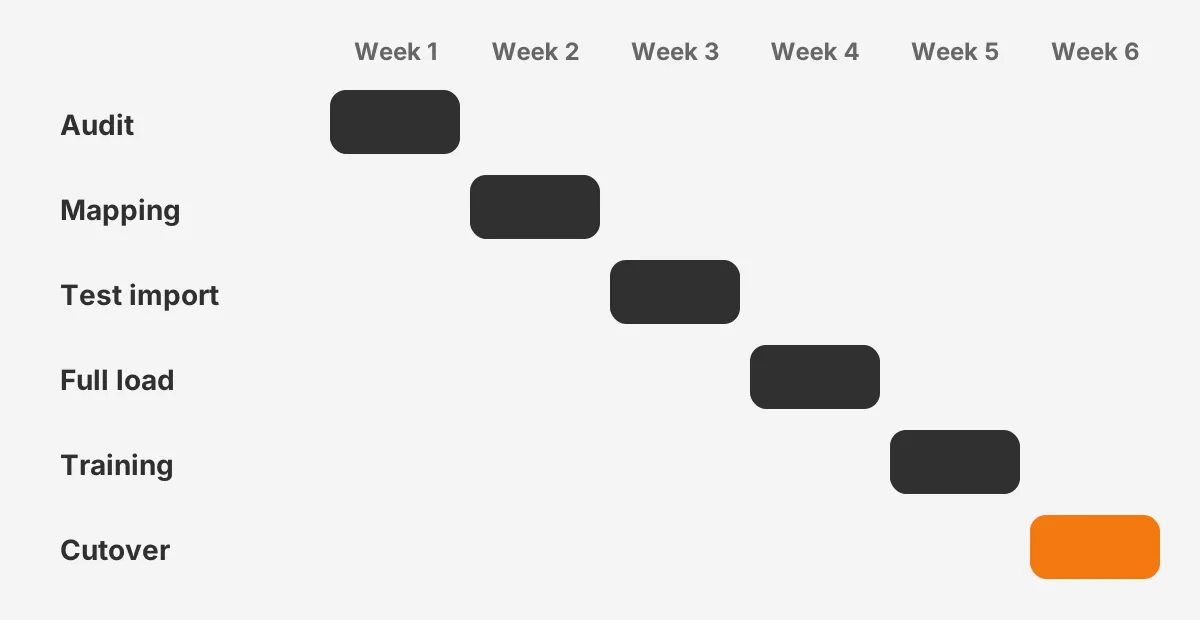
The worked example below uses assumed figures for a 25-rep B2B team. The account holds 40,000 people, 12,000 organizations, 9,000 deals and 160,000 activities. The team wants two years of history and has Data Hub.
- Week 1: audit, record counts and duplicate clean-up in Pipedrive.
- Week 2: field mapping, property creation and pipeline rebuild in HubSpot.
- Week 3: test import of 200 records per object and fixes.
- Week 4: full import of records and the activity sync.
- Week 5: reconciliation, rep training and parallel run.
- Week 6: cutover, Pipedrive set to read-only.
Every file in this example fits inside one HubSpot import, since no object passes 1,048,576 rows. The 160,000 activities move through the sync, not CSV. A team without Data Hub would need API work, and this example assumes that adds one to three weeks.
Three factors stretch the timeline. Heavy customization adds mapping rows. Connected tools such as calling apps need new HubSpot connections. Late decisions on pipelines or lifecycle stages force a second test import.
Pipedrive to HubSpot migration cost follows the same drivers. The CRM implementation cost breakdown explains how scope, data volume and integrations set the budget.
How Do You Validate Data and Cut Over?
Validate a Pipedrive to HubSpot migration against the export files, not against memory. Reconcile record counts, spot-check high-value deals and match the open pipeline value. Cut over only when those checks pass and reps have been trained.
Use these pass conditions before HubSpot becomes the system of record:
- Record counts per object match the export, minus records dropped on purpose.
- The 20 largest open deals show the right stage, amount, owner and contacts.
- Open pipeline value by stage matches Pipedrive to the dollar.
- Activity counts on 10 sample deals match their Pipedrive timelines.
- Every rep can find an account, log a call and move a deal.
A short parallel run reduces risk. Reps work in HubSpot while Pipedrive stays open as read-only for two to four weeks. Keep the Pipedrive subscription active until the reconciliation report is signed off.
The reconciliation report can be one shared sheet. List each object, the Pipedrive export count, the HubSpot count, the number dropped on purpose and the gap. Any gap above zero needs a named reason. Sales managers sign the sheet, which closes the Pipedrive to HubSpot migration on a documented result.
Training for a Pipedrive to HubSpot migration should use the team's own deals, not demo data. A 60-minute session per role covers views, tasks and pipeline moves. The common CRM migration mistakes article lists the adoption gaps that appear in the first month.
Plan the first 30 days after cutover. Review duplicate reports weekly, track login rates and fix the property gaps reps raise. For a finished move into HubSpot from another CRM, see the Salesforce to HubSpot migration with data intact.
Frequently Asked Questions
Can a team keep using Pipedrive during the migration?
Yes. Keep Pipedrive live until the full import finishes. Then set it to read-only for a two to four week parallel run. The Data Sync app can run a two-way sync, so new records created during the move still reach HubSpot. Cancel Pipedrive only after reconciliation is signed off.
Will deal history survive the move to HubSpot?
Deal history survives when activities move after deals and associations exist. HubSpot Smart Transfer and the Data Sync app carry calls, meetings, tasks, notes and email activities. Logged emails do not sync, and activity sync needs a Data Hub subscription, so check both limits early.
Do Pipedrive pipelines and stages copy across automatically?
Not automatically. Pipelines and stages are rebuilt in HubSpot as deal pipelines, then each Pipedrive stage is mapped to a HubSpot stage. Rebuild them before importing deals. Stage probabilities and rotting rules need manual setup, usually as HubSpot workflows or saved views.
Is a partner needed to leave Pipedrive for HubSpot?
A partner to migrate from Pipedrive to HubSpot is optional for a small, clean account moving by CSV. It becomes useful when the account has years of activity history, custom objects, connected tools or tight deadlines. A partner also brings tested mapping templates and a reconciliation process from earlier projects.
What happens to Pipedrive custom fields in HubSpot?
Each Pipedrive custom field becomes a HubSpot custom property with a matching type. Create the properties before import, and add every dropdown value first. Fields filled on few records can be dropped. Custom field mappings in the Data Sync app need Data Hub Starter or above.
Is Your Pipedrive to HubSpot Migration Ready to Start?
A Pipedrive to HubSpot migration is ready to start when three things are true. The audit is done, the mapping is signed off and the method fits the history needed. The HubSpot CRM migration guide covers the wider before, during and after plan.
Unboxx plans and runs CRM migrations into HubSpot, from mapping to reconciliation and rep training. To scope a Pipedrive to HubSpot migration for your team, schedule a consultation with an Unboxx consultant.
Let's create something out of this world together.
Have a project in mind? Contact us for expert design and development solutions. Let's discuss how we can help grow your business.
Ready to Unboxx Your Potential?
Build smarter systems. Automate faster. Scale confidently.