
Salesforce Flow Best Practices: Design, Tests and Limits
Salesforce Flow now runs over 690 billion executions a month, according to the Salesforce Admins blog (2026). At that volume, one badly built flow can slow every save. It can also block a data load or roll back a sales rep's work without a clear error.
Salesforce Flow best practices are the design, testing and governance rules that keep automation fast, readable and safe to change. This guide turns them into decision rules for admins. It covers flow types, record-triggered design, bulk-safe logic, fault paths, naming, Flow tests and the move off Workflow Rules.
Key Takeaways
- Use before-save flows for same-record updates and keep one entry point per object.
- Keep every Get Records and Update Records element outside loops, and give each data element a fault path.
- Build in a sandbox, add Flow tests, and retire Workflow Rules and Process Builder now that support has ended.
What Are Salesforce Flow Best Practices in 2026?
Salesforce Flow best practices are a short list of rules for choosing, building, testing and maintaining flows. They exist because Flow Builder lets an admin ship logic to production without code review. That freedom is useful, and it is also how orgs collect slow, duplicated and fragile automation.
Salesforce Flow best practices fall into five groups. Each group answers a question a reviewer should ask before a flow goes live.
- Type: is this the right kind of flow for the job?
- Design: does it run only when needed, in the right context?
- Scale: will it survive a bulk update of 200 records?
- Safety: what happens when an element fails?
- Change: can the next admin read, test and deploy it?
The best public reference is the Salesforce Admins guide to Flow best practices and standards. It was published in 2021 and updated in July 2025. It covers documentation, subflows, hard-coded IDs, fault paths and entry criteria. It skips Flow tests and the end of Workflow Rules.
Teams without an in-house Salesforce architect can have these rules applied by a partner. Unboxx builds and reviews flows as part of its Salesforce CRM services, using the same checklist below.
Treat Salesforce Flow best practices as a review checklist, not a style preference. A flow that breaks two or more Salesforce Flow best practices needs rework before anyone adds features to it.
Which Flow Type Should You Choose First?
Pick the flow type from the event that starts the work. The trigger sets the context, the limits and what the user sees. That is why the first of the Salesforce Flow best practices is about type.
- A record-triggered flow runs when a record is created, updated or deleted.
- A screen flow guides a user through inputs, such as a returns intake form.
- An autolaunched flow has no trigger and runs when Apex, a button or another flow calls it.
- A schedule-triggered flow runs on a set time for a batch of records.
- A platform event-triggered flow reacts to a platform event message from another system.
Most Salesforce flows in a sales or service org are record-triggered. Deal-stage updates, renewal tasks and lead assignment all fit here, as the sales process automation guide shows. That is where Salesforce Flow best practices matter most, because they run inside every save.
Screen flows carry a different risk. They can run in system context, which lets a user see or edit records their profile would normally block. The Admins guide tells builders to check the flow context and the target user before release. Experience Cloud pages need the closest look.
A subflow is an autolaunched flow that another flow calls. Use subflows for logic that repeats, such as building an address string or writing an error log. One change then fixes every flow that calls it.
A schedule-triggered flow has its own limit. The Admins guide puts the cap at 250,000 scheduled interviews per 24 hours. The cap rises to 200 times your user licenses if that number is greater. Filter records in the start element so a nightly job stays well under it.
How Should You Design Record-Triggered Flows?
Design record-triggered flows around three choices: the save context, the entry conditions and the run order. Getting these right prevents the common performance problems before any element is added.
Before-save flow or after-save flow?
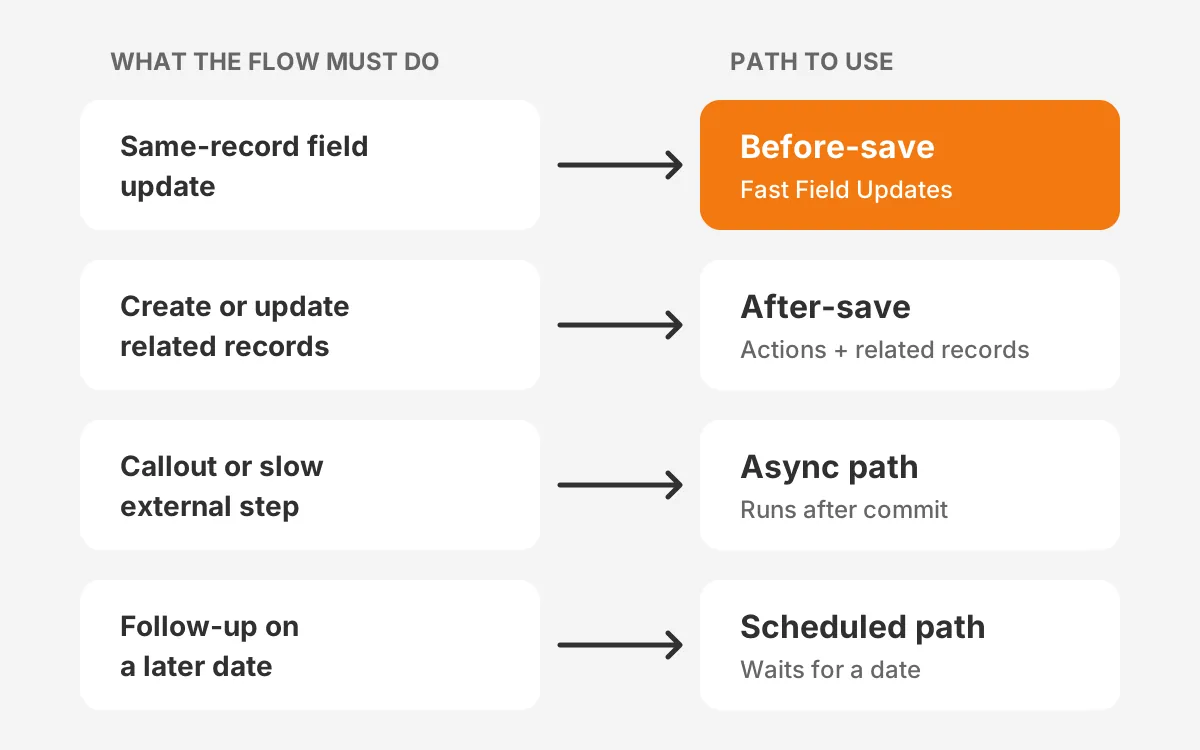
A before-save flow, called Fast Field Updates in Flow Builder, changes fields on the record that triggered it. It runs before the record is written, so it needs no extra DML statement. The Admins guide calls before-save flows significantly faster than after-save flows for that reason.
An after-save flow, called Actions and Related Records, runs once the record is saved. Use it to create or update other records, send email, post to Slack or call an invocable action. A before-save flow cannot create records, delete records, call actions or run a subflow.
| Need | Best path | Why |
|---|---|---|
| Set a field on the same record | Before-save (Fast Field Updates) | No second save, no extra DML |
| Create or update related records | After-save (Actions and Related Records) | The record ID exists and actions are allowed |
| Callout or slow external step | Asynchronous path | Runs after commit with higher limits |
| Follow-up on a later date | Scheduled path | Waits for a date field, then runs |
The Salesforce Architects decision guide for record-triggered automation adds a limit argument for async work. Asynchronous CPU time is 60,000 ms and heap size is 12 MB, both higher than synchronous limits.
Entry conditions and one entry point
Entry conditions decide whether the flow runs at all, and they cost nothing to add. Of all Salesforce Flow best practices, this one has the best effort-to-payoff ratio.
Without entry conditions, a record-triggered flow runs on every create or update of the object. Add a condition such as "Stage changed to Closed Won". Then set the flow to run only when a record is updated to meet it.
Salesforce Architects recommend one entry point per object and warn against mixing Flow and Apex triggers on the same object. Their decision guide rates fewer than 15 automations on an object as low complexity. It rates 15 to 30 as medium and over 30 as high.
When an object needs more than one flow, open Flow Trigger Explorer. It lists every flow that fires for an object and event and lets admins set a trigger order. The platform does not guarantee run order otherwise, so an unordered pair of flows can overwrite each other.
These record-triggered flow best practices also cover bypasses. The Admins guide suggests a bypass for data loads and sandbox seeding. A common pattern checks a custom permission in the entry formula. An integration user with that permission skips the flow during a migration.
How Do You Keep Flows Bulk-Safe and Within Limits?
Keep flows bulk-safe by querying once, changing records in memory and saving once. Check this Salesforce Flow best practices rule first on every review. Salesforce flow governor limits apply to the whole transaction, including Apex triggers and other flows on the same save.
The classic mistake is DML inside a loop. A builder adds a Loop element, then places an Update Records element inside it. That pattern issues one database write per record. A data load of 200 records can then exceed the per-transaction DML limit and fail.
The fix follows four steps:
- Run one Get Records element before the loop, filtered as tightly as possible.
- Inside the Loop element, use an Assignment to change the current record's fields.
- Add each changed record to a record collection variable.
- After the loop ends, run one Update Records element on the whole collection.
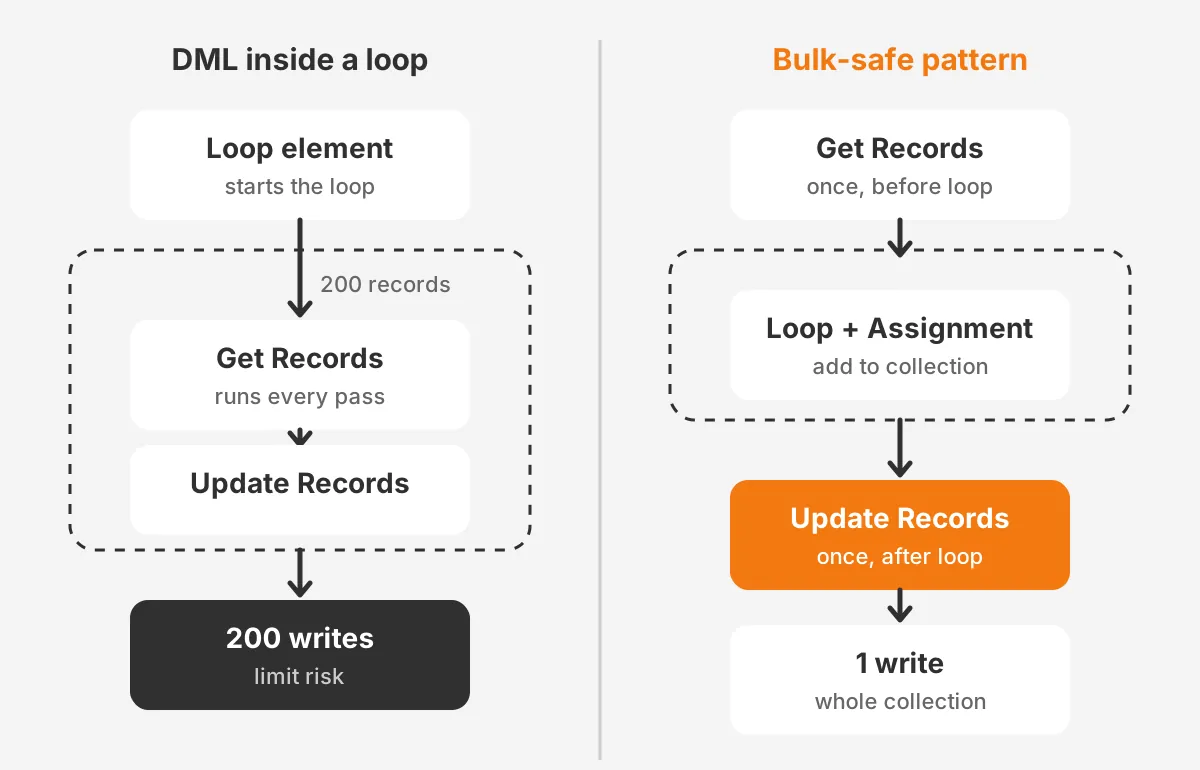
This is how to bulkify a flow without Apex. The same rule applies to Get Records. A query inside a loop repeats for every record and burns the query limit.
The decision guide is blunt about scale. It marks Flow as not recommended for high-performance bulk data processing because of the elevated risk of hitting governor limits. It also notes that a limit failure in a synchronous trigger rolls back the user's entire save transaction.
Two habits keep transaction rollback rare. Move slow or external work to an asynchronous path. Then use the record's prior values to skip updates where nothing changed.
That second habit matters because an update that writes the same value still fires every trigger on the object. Both habits come straight from Salesforce Flow best practices for scale.
How Should Flows Handle Errors and Fault Paths?
Give every element that touches data or calls an action a fault path. Salesforce Flow best practices treat this as non-negotiable. A fault connector routes the flow to a planned response when an element fails. That covers Get Records, Create Records, Update Records, Delete Records and actions.
Skip it, and the user sees a generic "unhandled fault" message while the admin gets an email with little context. The Admins guide lists missing fault paths among the most common builder mistakes, next to hard-coded IDs and careless loops.
A practical flow error handling pattern has three parts:
- Capture the error with the $Flow.FaultMessage variable and the record ID.
- Write both to a custom error log object through a shared subflow.
- Show the user a plain message in screen flows, or notify the owner in background flows.
The error log object turns failures into data. An admin can build a report on it, sort by flow name and fix the worst offender first. For a production example, see how Unboxx helped a client automate customer touchpoints in Salesforce.
Scheduled paths have their own trap. A scheduled path runs later in the context of the user who triggered it. If that user is deactivated first, the resumed flow fails. Run scheduled paths as a dedicated automation user where the business process allows it.
Which Naming and Documentation Standards Keep Flows Maintainable?
Name flows by object, trigger and purpose, and document every element. Salesforce flow naming conventions matter because Setup lists flows alphabetically. A list of 80 flows named "New Flow 3" cannot be reviewed.
A workable pattern looks like this:
- Flow name: Object_Trigger_Purpose, such as Opportunity_AfterSave_CreateRenewal.
- Variables: a type prefix, such as varTotal, colContacts or recAccount.
- Elements: a verb and a noun, such as Get_Open_Cases or Update_Account_Tier.
The Admins guide suggests consistent CamelCase names for elements and variables, plus a description on each one. Good salesforce flow documentation answers three questions. What does the flow do, who asked for it and what must it never touch?
Hard-coded IDs in flow are the second maintenance risk that Salesforce Flow best practices target. A record type ID or queue ID copied from production breaks in a sandbox, because IDs differ between orgs. Use a Get Records element on the developer name, or store values in custom metadata types.
Custom metadata types move business rules out of the canvas. A discount threshold or a routing region can live in a metadata record. An admin then edits it without opening Flow Builder. The Admins guide calls this logic abstraction.
Flow versions need hygiene too. Each save creates a new version, and old inactive versions pile up. Delete the ones you no longer need.
Write the reason for each change in the version description. These habits make salesforce flow design reviewable by someone who did not build it. They match the governance rules in these Salesforce implementation best practices.
How Do You Test Flows Before Deployment?
Test flows in a sandbox, with saved tests, before any change reaches production. A sandbox holds real configuration without real customers. A broken flow there costs an hour instead of a lost deal.
Flow tests arrived as a beta in the Summer '22 release. That is according to the Salesforce Admins post on why admins should create Flow tests. They let admins save a test record, run the flow and assert the result. The 2022 version had clear limits:
- It supported only create, update, or create and update record-triggered flows.
- It tested only the happy path and only the Run Immediately path.
- Change sets could not deploy Flow tests, though Salesforce DX could.
- Flow tests did not run automatically with deployment.
Flow Test Mode, a beta described in September 2026, replaces the Debug button with a dedicated test view. Saved debug runs become manual test scenarios that can hold assertions. Admins can also mock an element's output without running it.
Flow Test Mode makes Salesforce Flow best practices for testing easier to follow. Starting in Winter '27, Test Mode shows how much of a flow automated tests cover. The beta supports record-triggered and autolaunched flows, with screen and scheduled flows planned.
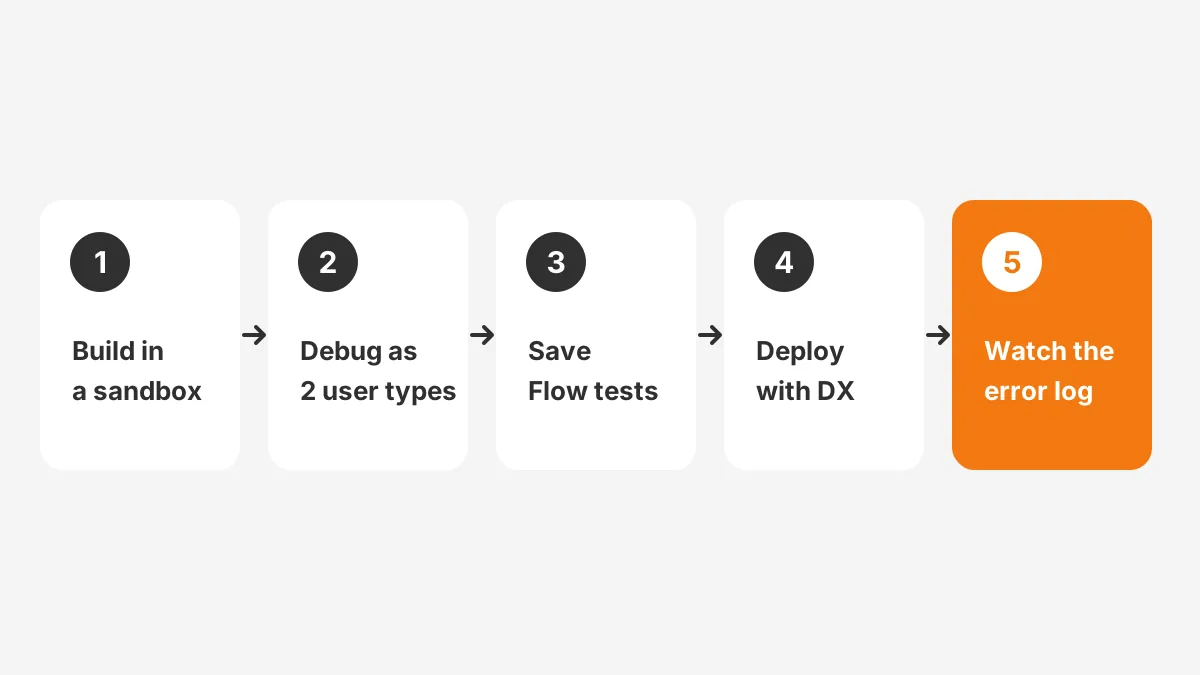
Debug a flow as two user types. Save at least one passing test and one edge case. Deploy through Salesforce DX or a release tool, then watch the error log for a week. Teams that follow Salesforce Flow best practices run this same routine on every deployment, however small.
How Do You Migrate Workflow Rules and Process Builder?
Migrate them to Flow now, one object at a time. Migration is the moment to apply Salesforce Flow best practices from a clean start.
Support for Workflow Rules and Process Builder ended on December 31, 2025, according to Eigen X (2025). Both tools still run, but Salesforce no longer provides bug fixes or customer support for them.
Workflow rules end of support does not switch old automation off overnight. It does mean any failure after that date is the org's problem alone. Process Builder end of support carries the same risk.
The Migrate to Flow tool in Setup converts a workflow rule or a process into a flow. It is a starting point, not a finished design. Salesforce Flow best practices suggest this order:
- Inventory every active workflow rule and process by object.
- Convert one object's automation with the Migrate to Flow tool in a sandbox.
- Merge the results into one before-save and one after-save flow for that object.
- Add entry conditions, fault paths and Flow tests, then deactivate the old rule.
Step three is where Salesforce Flow best practices pay off. A converted org often ends up with one flow per old rule. That recreates the clutter the migration was meant to remove. Merging by object keeps the one-entry-point rule and makes Flow Trigger Explorer readable again.
Plan the migration with the business owner of each rule. Some rules automate steps nobody uses anymore, and deleting them is cheaper than converting them. An audit like the one in this Salesforce optimization guide finds those rules quickly.
How Do You Audit Flows Against These Rules?
Audit flows by scoring each one against Salesforce Flow best practices, object by object. A one-page scorecard turns complaints about messy automation into a ranked work list.
Score every active flow on six checks, one point each. A flow that scores four or lower goes on the rework list.
| Check | Pass when |
|---|---|
| Flow type | The trigger matches the job |
| Entry conditions | The flow runs only when its fields change |
| Bulk safety | No Get Records or Update Records inside a loop |
| Fault paths | Every data element and action has one |
| Naming | The name follows Object_Trigger_Purpose and elements have descriptions |
| Tests | At least one saved Flow test passes |
Start with the busiest objects, such as Opportunity, Case and Lead. Those objects carry the most saves, so a weak flow there costs the most time.
A worked example shows the effect. Assume an org has 40 active flows on Opportunity and 12 score four or lower. Fixing those 12 first covers the flows most likely to fail a bulk update. These are assumed figures for illustration, not client data.
Repeat the Salesforce Flow best practices audit each release cycle. Salesforce ships features such as Flow Test Mode, so review the scorecard itself once a year.
When Should Salesforce Flow Best Practices Point to Apex?
Salesforce Flow best practices point to Apex when the work is heavy, complex or needs data structures Flow lacks. Flow vs Apex is a choice of tool per job.
The decision guide lists clear signs for when to use Apex instead of Flow:
- High-volume bulk data processing, where Flow carries a higher risk of hitting limits.
- Logic that needs maps or sets, which Flow does not offer natively.
- Undelete events, which record-triggered flows do not support.
- Objects that already run an Apex trigger framework, since mixing entry points is discouraged.
Mixed designs are common. Keep the orchestration in Flow, then call an invocable action written in Apex for the hard step. The flow stays readable to admins, and developers own the code that needs unit tests.
Apex also brings its own rules: test classes, code coverage and a developer to maintain it. Teams without that skill in-house can hand it to outsourced Salesforce administration so flows and code follow one standard.
Old automation that nobody understands is a form of Salesforce technical debt. The audit scorecard above doubles as its paydown list. Salesforce Flow best practices decide which flows to fix first.
Frequently Asked Questions
How many flows should an object have?
There is no fixed number of flows per object. The Salesforce Architects guide recommends one entry point per object and rates fewer than 15 automations as low complexity. A common design keeps one before-save and one after-save flow per object and orders any extras in Flow Trigger Explorer.
Can a before-save flow update related records?
No, a before-save flow can only change fields on the record that triggered it. It cannot create or delete records, call actions or run subflows. Use an after-save flow for related records, and keep same-record field updates in the before-save flow for speed.
Do Workflow Rules still run after end of support?
Yes, existing Workflow Rules and processes keep running, but Salesforce stopped support and bug fixes after December 31, 2025. Any failure is now unsupported. Plan the move with the Migrate to Flow tool and test each converted flow in a sandbox. Deactivate the old rule only after tests pass.
Who should own Salesforce flows in a company?
A named Salesforce admin or automation owner should own every flow, with a business owner who approves changes. The admin keeps naming, documentation and tests consistent. For complex objects, a developer reviews any Apex the flow calls, so ownership stays clear between configuration and code.
What is the difference between debugging and Flow tests?
Debugging runs a flow once so the builder can watch each element. Flow tests save a scenario with assertions, so the same check runs again after every change. Debug while building, then turn each useful debug run into a saved test that catches regressions before deployment.
How Can Unboxx Apply Salesforce Flow Best Practices?
Unboxx applies Salesforce Flow best practices through an automation audit, a migration plan and a release process. As a Salesforce partner, the team inventories every flow, workflow rule and process in the org. Each one is scored against Salesforce Flow best practices, and the riskiest objects are rebuilt first.
If your org still runs Process Builder or mixes Flow with Apex triggers, book a Salesforce automation review with Unboxx.
Let's create something out of this world together.
Have a project in mind? Contact us for expert design and development solutions. Let's discuss how we can help grow your business.
Ready to Unboxx Your Potential?
Build smarter systems. Automate faster. Scale confidently.