
Accounting Software Integrations: What Data They Transfer
A sales rep closes a deal on Friday, and the invoice still does not exist on Tuesday. Finance retypes the customer name, the price and the billing address from a CRM screen. The rep then asks finance by email whether the customer has paid.
Accounting software integrations remove that retyping by moving a defined set of records between the CRM and the books. They carry customers, products, prices, orders, invoices, credit memos and payment status. Each record moves in a set direction and on a set schedule.
Key Takeaways
- Accounting software integrations move customers, products, orders, invoices, credit memos and payment status between the CRM and the books.
- Each record type needs one system of record, a sync direction and a sync schedule decided before go-live.
- Journal entries, the chart of accounts and bank details stay in the accounting system and never sync to the CRM.
What Data Do Accounting Software Integrations Transfer?
Accounting software integrations transfer four groups of data: customer master data, the product catalog, sales documents and payment results. Most accounting software integrations cover all four, though the depth of each group differs by product.
The first group is the customer: the company, its contacts, its billing address and its tax settings. The second group is what the business sells: items, services, price lists and units.
The third group is the paperwork of a sale, from estimate to sales order to invoice. The fourth group is what happened after the invoice: payments, credit memos, refunds and the open balance.
A payment processor adds a fifth stream. Stripe's accounting app documentation lists the data its partner apps sync. The list covers transactions, fees, funds, payouts, invoices, taxes, customers and products. That stream usually runs between the processor and the books, with only the paid status reaching the CRM.
What data syncs between CRM and accounting software comes down to what both teams need to see. A crm accounting integration that moves less than this leaves finance retyping. One that moves more puts ledger data in front of sales reps who cannot use it.
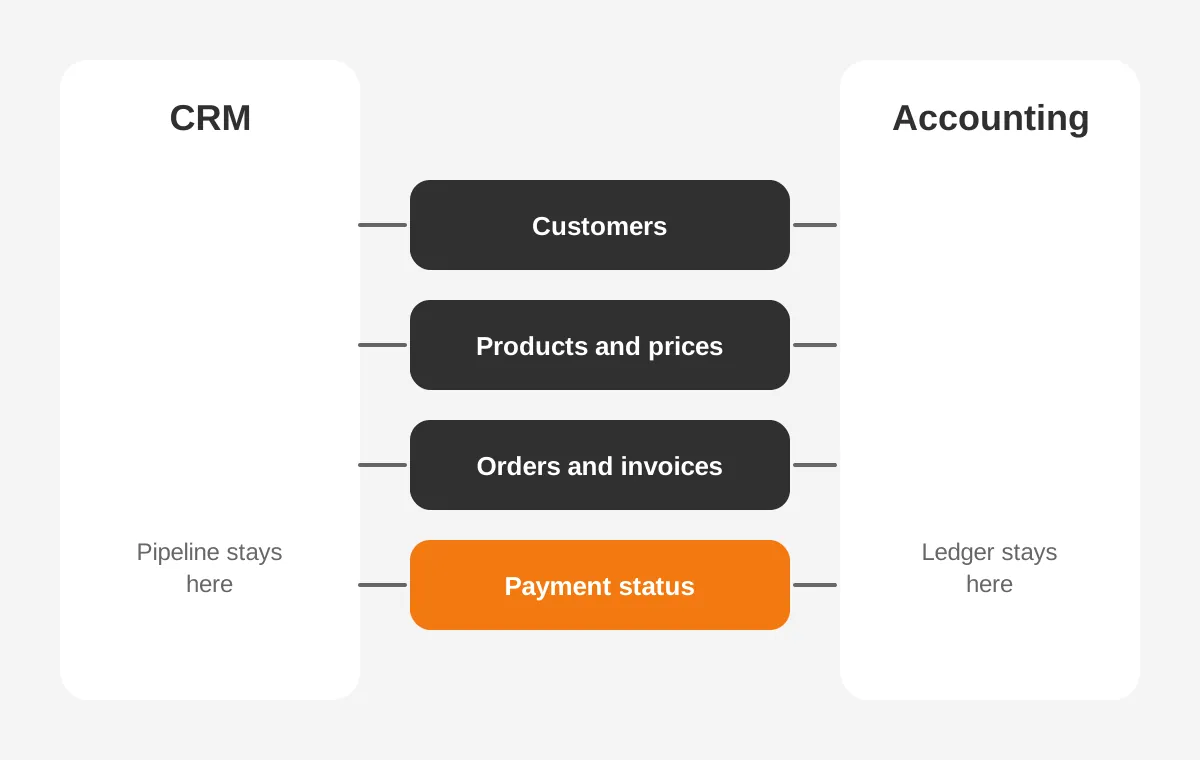
The table below sums up each group in a typical accounting software integration. It shows where each record usually starts and which way it travels.
| Data group | Typical records | Usual system of record | Usual direction |
|---|---|---|---|
| Customer master data | Accounts, contacts, billing address, tax status | CRM for new customers, books for credit terms | Two-way |
| Product catalog | Items, services, price lists, units of measure | Accounting or ERP system | Books to CRM |
| Sales documents | Estimates, sales orders, invoices | CRM for estimates, books for posted invoices | CRM to books, status back |
| Payment results | Payments, credit memos, refunds, balances | Accounting system | Books to CRM |
Few teams switch on every group at once. A common first phase of accounting software integrations covers customers and invoices. Products and payments follow once those two run cleanly.
Which Customer and Contact Fields Should Sync?
Customer data sync should cover the legal name, both addresses, the main contacts, the currency and the tax status. Those fields let finance invoice without asking sales a question. Credit limits and payment terms usually live in the books and flow to the CRM as read-only values.
Microsoft publishes its customer mapping in full. In the Business Central and Dataverse synchronization guide, the Customer table maps to the Account table in both directions. Vendors also map to Accounts, contacts map to contacts, and currencies flow only from Business Central to Dataverse.
The same guide shows that filters matter as much as fields. Only active accounts with a relationship type of Customer sync as customers. Contacts sync only when they are a person assigned to a company.
A business central integration that skips these filters fills the books with prospects that never bought. On other platforms, accounting software integrations need the same filter, written as a rule on deal stage or account type.
How Do You Map Customer Records Without Duplicates?
Map customer records on one shared key, such as an account number or a customer ID stored in both systems. Matching on company name alone creates duplicate customer records. One person types "Inc." and another leaves it out.
Clean the customer list before accounting software integrations run their first sync. An accounting system integration copies every duplicate it finds. A CRM with three versions of one company sends three customers to the books. Unboxx's guide to CRM data cleansing by platform covers the merge rules worth running first.
Decide which side owns the billing address. Sales often hears about an address change first, while finance needs the address on file to match the invoice. A common rule lets the CRM edit addresses and the books accept them, with a report that flags any mismatch.
How Do Products, Prices and Units Move Between Systems?
In most accounting software integrations, products, prices and units move from the books into the CRM. Finance owns the item list, the tax codes and the revenue accounts. The CRM receives a copy that reps can quote from.
The Microsoft guide to integrating Business Central with Dynamics 365 Sales lists the pieces. Items and resources become Products in Sales. Each unit of measure and unit group flows to Sales as well. Customer price groups become price lists, and sales prices become price list entries.
That dynamics 365 sales integration also refreshes item availability on a job queue. According to the same guide, that job runs every 30 minutes. Reps see stock levels without opening the ERP. They still cannot edit the price list the integration creates, because the next sync would overwrite their change.
Connectors for QuickBooks follow a similar pattern in their accounting software integrations. The Breadwinner connector for Salesforce, a vendor product, syncs QuickBooks items into Salesforce Products and Price Books. A rep who builds a quote from a Salesforce price book is then quoting the price finance set.
To sync products and price lists well, keep three rules. Create new items in one place only. Map each item to a revenue account before it reaches the CRM. Retire items by marking them inactive, never by deleting them, so old invoices keep their lines.
How Do Invoices and Sales Orders Flow?
Invoices and sales orders usually start from a CRM record and land in the books as documents finance can post. The trigger is often a closed deal, an approved quote or a button on the opportunity.
The quote to cash path has four steps in most setups. A rep builds an estimate in the CRM. The approved estimate becomes a sales order. The order becomes an invoice in the books. The invoice status then returns to the CRM record that started it.
A quickbooks crm integration shows the pattern clearly. Breadwinner's QuickBooks Salesforce integration page describes invoices created from Salesforce accounts, opportunities or orders. Those invoices then sync to QuickBooks Online. Estimates also move from Salesforce to QuickBooks for conversion into invoices.
Breadwinner says its invoices sync within seconds and that QuickBooks Desktop is not supported. Those are vendor statements, so test them in a sandbox before relying on them. Check any salesforce quickbooks integration against the plan, edition and region of the books in use.
Microsoft's accounting software integrations treat posted documents more strictly. Posted sales invoice headers and lines move from Business Central to Sales, one way only. Sales orders can sync both ways when bidirectional sync is on. Price, tax and shipment date changes then flow back to Sales.
The lesson for any crm invoice sync is easy to state. The CRM can propose an invoice, but the accounting system decides what was posted. Invoice data sync should return the invoice number, date, total and status. That way invoices sync back to the CRM as read-only records.
Teams that sync CRM with QuickBooks often add one more field: the person who requested the invoice. That single quickbooks online integration field gives finance a name to contact when a line looks wrong.
Without it, accounting software integrations leave finance guessing. The invoice exists, but nobody knows which rep to ask about a missing purchase order number.
What Payment Data Flows Back to the CRM?
Payment data flows back to the CRM as status, amount paid, payment date and open balance. Reps need to know whether a customer has paid before they call about a renewal. They do not need the bank deposit behind the payment.
QuickBooks does sync payments to CRM records through most two-way accounting software integrations. Breadwinner states that a payment recorded in QuickBooks updates the paid status on the Salesforce account. It also syncs credit memos from QuickBooks into Salesforce.
Sync credit memos and refunds as well as payments. A customer with a large credit on account looks overdue if the CRM shows invoices but no credits. Showing both gives the account manager the same accounts receivable picture finance sees.
A stripe accounting integration posts payouts and fees, refunds and sales tax data from the processor to the books. Stripe's page names QuickBooks Sync by Acodei as its QuickBooks Online app. That app syncs each transaction in real time, or a daily summary for high volumes.
The same page says the Xero app gives a real-time feed of payouts for verification. Teams that sync CRM with Xero this way let the books do the reconciliation. A xero crm integration then needs only the result: paid, part-paid or overdue.
Keep payment data sync narrow. Payment status in the CRM should be a short list of fields on the account and invoice. Card numbers, bank account details and processor fee lines have no use in a sales tool.
A narrow payment sync has a side benefit for accounting software integrations: the CRM permission model stays narrow too. Fewer sensitive fields means fewer users who need special access rules.
Which Direction Should Accounting Software Integrations Sync?
Accounting software integrations should sync each record type in one agreed direction. Two-way sync belongs only where both teams edit the same fields. The direction follows ownership: the team that creates and corrects a record owns it.
Picking one-way vs two-way sync is a question about people more than connectors. Two-way sync looks complete, but it lets two teams overwrite each other. One-way sync is easier to audit, because every change has a single source.
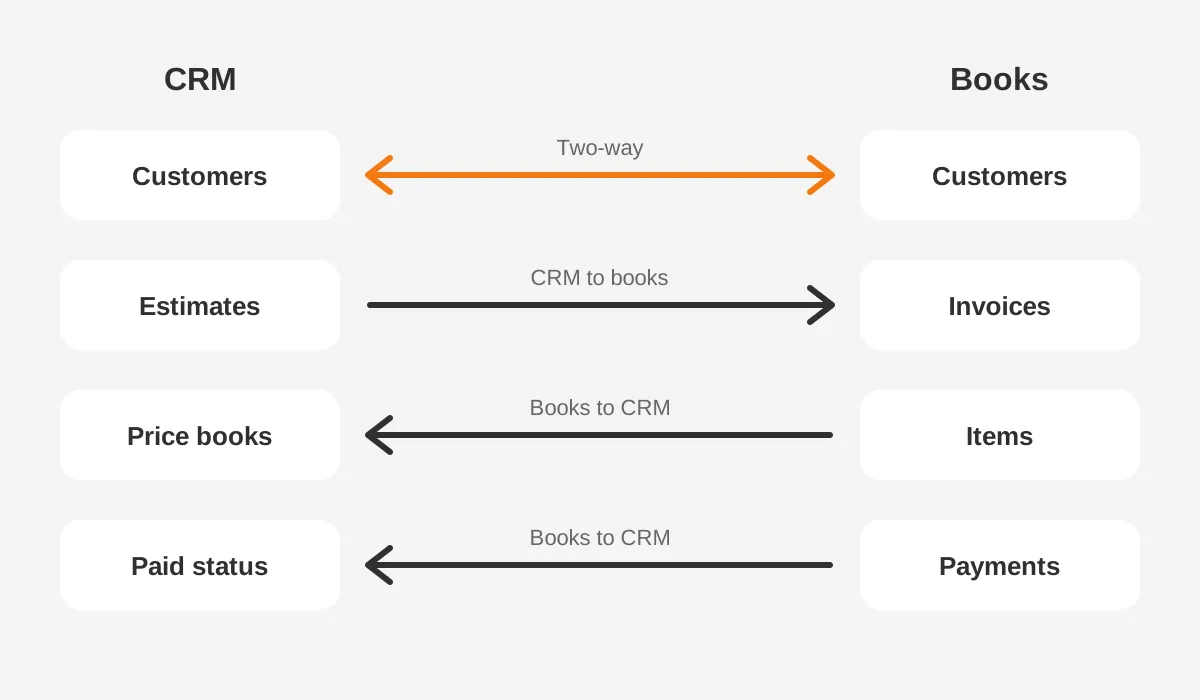
To choose a system of record, ask three questions for each record type. Who creates it? Who corrects it when it is wrong? Who is audited on it? If finance answers all three, the books own the record, and the CRM gets a read-only copy.
Watch the integration user. Microsoft notes that changes made by the integration user account are not synchronized. That rule stops loops. It also means a person working under that login creates silent gaps. Give the accounting integration its own account and keep people off it.
Write the decisions into a one-page sync contract. List each object, its owner, its direction, its schedule and the fields it carries. Unboxx uses the same document on CRM and ERP integration projects, because the questions are the same on both.
Without that contract, accounting software integrations drift over time. A new admin adds a field, flips a direction, and nobody notices until the totals stop matching.
How Often Do Accounting Software Integrations Sync Data?
Accounting software integrations sync data on one of three schedules. The options are real time, a short interval such as every 30 minutes, or a daily batch. The right schedule depends on who waits for the data and what a delay costs.
Microsoft is direct about the limits of scheduled accounting software integrations, including its own. Its synchronization guide states that the job queue method does not guarantee real-time data consistency. For real-time needs, it points to virtual tables or the Business Central APIs instead.
How often accounting data should sync depends on the record. Payment status every 30 minutes suits most sales teams. Invoice creation often needs to be faster, because a rep may want to send the invoice during the call. Product and price changes can wait for a nightly run.
The method also sets the schedule. Native connectors such as Breadwinner run inside the CRM and react to record changes. Middleware such as Zapier passes records on triggers and often carries contacts only. Custom API work can run on any schedule, at a higher build and support cost.
Any accounting integration software should log every run, every failure and every skipped record. A sync that fails without a log looks the same as a sync with nothing to move. Accounting data sync failures often surface at month-end close, when they cost the most to fix.
The log also needs an owner, as accounting software integrations fail quietly. A named person who reads failures each morning catches a bad record in one day, not one month.
What Data Should Stay Out of the CRM?
Journal entries, the chart of accounts, ledger balances, bank details and payroll data should stay out of the CRM. These records belong to finance, carry audit duties and give a sales team nothing to act on.
Data that should not sync to the CRM falls into three types. Ledger data, such as the general ledger and chart of accounts, explains how money was booked. Sensitive data, such as bank details and payroll, raises the security bar for every CRM user.
The third type is internal cost data, such as margins by item. Showing margins to every rep invites discount arguments that finance would rather settle elsewhere.
The rule cuts both ways in accounting software integrations. Pipeline stages, forecast categories, call notes and lead scores have no place in the books. A finance system integration that copies opportunities before they close fills the books with deals that may never happen.
The test for any field is one question: will the other side act on it? If a rep will not change a call because of a field, leave it in the books. If finance will not change an invoice because of a field, leave it in the CRM.
How Do You Map Fields Before Going Live?
Map fields in four moves: list objects, match fields, choose owners and test on real data. Field mapping is where most of the design work sits. It is cheaper on paper than in production.
Use this accounting integration field mapping checklist to integrate CRM with accounting software in order:
- List the objects in scope: customers, contacts, products, estimates, orders, invoices, credit memos and payments.
- Pick the shared key for each object, such as a customer ID or an item code.
- Match each CRM field to its accounting field, for example Account Name to Customer Name.
- Mark each field as two-way, CRM to books, books to CRM or not synced.
- Decide how currencies, tax codes and units of measure translate between systems.
- Run the first sync in a sandbox with a full copy of customer data.
- Compare totals for open invoices and balances in both systems before switching on production.
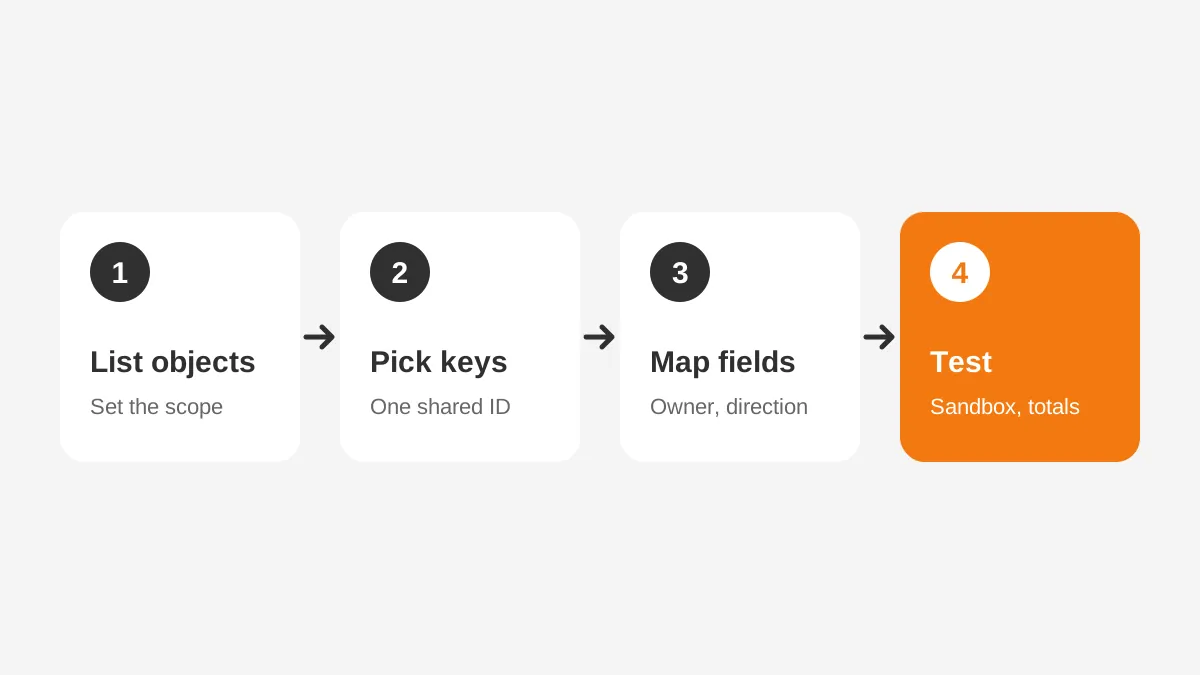
Teams often ask which fields to map between CRM and QuickBooks first. Start with the fields no invoice can go out without. Those are customer name, billing address, item, quantity, price, tax code and terms. Add reporting fields after the first month runs cleanly.
Keep the map in a shared sheet. Each row names the CRM field, the accounting field, the owner, the direction and the transformation rule. This sheet becomes the support guide once the build team leaves. For a platform view, see the guides to HubSpot ERP integration and Salesforce ERP integration.
Unboxx builds and supports accounting software integrations through its CRM integration services, from field map to monitoring. Firms in finance and audit can also see how the pieces fit on the CRM for accounting firms page.
Testing this way means accounting software integrations go live with fewer surprises. The sandbox run shows which records fail, and the totals check proves both systems agree on what customers owe.
Frequently Asked Questions
How long does an accounting integration take?
Timing depends on the method. A native connector with standard objects needs planning, mapping and a sandbox test before go-live. A custom API build with custom objects, currencies and approval rules takes longer. Each extra mapping needs its own test cycle before the first live sync runs.
Does the HubSpot QuickBooks sync include invoices?
A HubSpot QuickBooks sync can create invoices from HubSpot deals and show their status on the deal record. The exact objects depend on the connector and the HubSpot tier. Confirm invoices, credit memos and payments in the app listing. Then test the sync before connecting live books.
Is an accounting integration an ERP integration?
An accounting integration is a narrower version of an ERP integration. It moves customers, invoices and payments between the CRM and the books. An ERP integration adds inventory, purchasing, manufacturing and fulfillment data. The design questions about ownership, direction and schedule stay the same for both kinds of project.
Can Odoo replace a separate CRM and accounting tool?
Odoo includes CRM and accounting apps in one database, so customers, quotes and invoices share records without a connector. That removes sync jobs but not the need for clear ownership. Teams moving from separate tools still need to clean, map and migrate customer and product data first.
What happens when a synced record fails?
When a synced record fails, a well-built integration logs the error, skips the record and continues the run. Someone must review the error log and fix the source record. Without that review, missing invoices or customers surface weeks later during reconciliation, when the fix takes far more time.
How Can Unboxx Help With Accounting Software Integrations?
Unboxx helps teams plan and build accounting software integrations that move the right data in the right direction. The work starts with the sync contract and the field map. It continues through connector choice, sandbox testing and monitoring after go-live.
Unboxx works across Salesforce, HubSpot, Dynamics 365 and Odoo. A company that once ran disconnected sales, billing and service shows how a connected setup looks. To map the data your CRM and books should share, schedule a consultation with the Unboxx team.
Let's create something out of this world together.
Have a project in mind? Contact us for expert design and development solutions. Let's discuss how we can help grow your business.
Ready to Unboxx Your Potential?
Build smarter systems. Automate faster. Scale confidently.