
A rep marks a deal closed-won in HubSpot on Thursday. Finance re-keys the order into NetSuite on Monday, with last quarter's price and a missing ship-to address. The customer's first invoice disagrees with the quote they signed. Sales and finance then spend a week arguing over whose number is right.
A HubSpot ERP integration closes that gap. It moves customers, products, orders and invoices between HubSpot and the ERP automatically, so each record is typed once.
Getting there takes more than a connector setting. To integrate HubSpot with ERP, a team must settle which data moves, who owns each field and how systems connect. API limits, testing and cost come next.
Key Takeaways
- A HubSpot ERP integration works when every field has one owning system and one stated sync direction.
- Native data sync suits simple contact and company flows, while orders and invoices usually need an iPaaS or custom API.
- Run the integration one way first, reconcile record counts, and only then allow HubSpot to write back to the ERP.
What Is HubSpot ERP Integration?
HubSpot ERP integration is the automated exchange of customer, product, order and invoice data between HubSpot and an ERP system.
ERP stands for enterprise resource planning, the software that runs finance, inventory, purchasing and fulfilment. Common examples are NetSuite, Microsoft Dynamics 365 Business Central, SAP Business One, Odoo, Sage, Epicor and Acumatica.
HubSpot and ERP software do different jobs. HubSpot holds the commercial story: contacts, companies, deals, emails, meetings and marketing history. The ERP holds the financial and operational story: customer accounts, credit terms, item masters, sales orders, shipments, invoices and payments.
Without a connection, the two drift apart. Sales quotes from an old price list. Finance creates a customer account with a different spelling. Support cannot see whether an order has shipped.
A HubSpot ERP integration keeps both sides describing the same customer, with each system writing only the data it owns.
A HubSpot ERP integration is also different from a one-time data migration. A migration moves records once and retires the old system. An integration keeps two live systems in step every day.
The Unboxx guide to CRM ERP integration explains the wider pattern across platforms. This article applies it to HubSpot.
Which Data Should Move Between HubSpot and ERP?
Sync only the data that someone on the other side uses every week. Each object should travel in one direction unless both teams edit it. The table below shows a usual starting map for a B2B company using HubSpot and an ERP.
| Data | HubSpot object | ERP record | Direction | Typical timing |
|---|---|---|---|---|
| Customer identity | Company and contacts | Customer account | HubSpot to ERP at closed-won, then ERP back | On event |
| Products and prices | Product library | Item master and price list | ERP to HubSpot only | Nightly or on change |
| Orders | Deal and line items | Sales order | HubSpot to ERP once, at closed-won | On event |
| Order status | Deal or custom property | Sales order and shipment | ERP to HubSpot only | Every 15 to 60 minutes |
| Invoices and payments | Invoice object or properties | Invoice and payment | ERP to HubSpot only | Hourly or nightly |
| Credit terms and balance | Company property | Customer account | ERP to HubSpot only | Nightly |
Products and prices live in the ERP. The product catalog in HubSpot should be a read-only copy of the item master. Both sides use the same SKU. Reps then quote from current prices and cannot invent a part number.
Sales orders start in HubSpot but belong to the ERP. When a deal closes, the deal and its line items create one sales order.
From that point the ERP owns quantities, discounts approved by finance, ship dates and order status. When teams sync orders to HubSpot, only that status should come back.
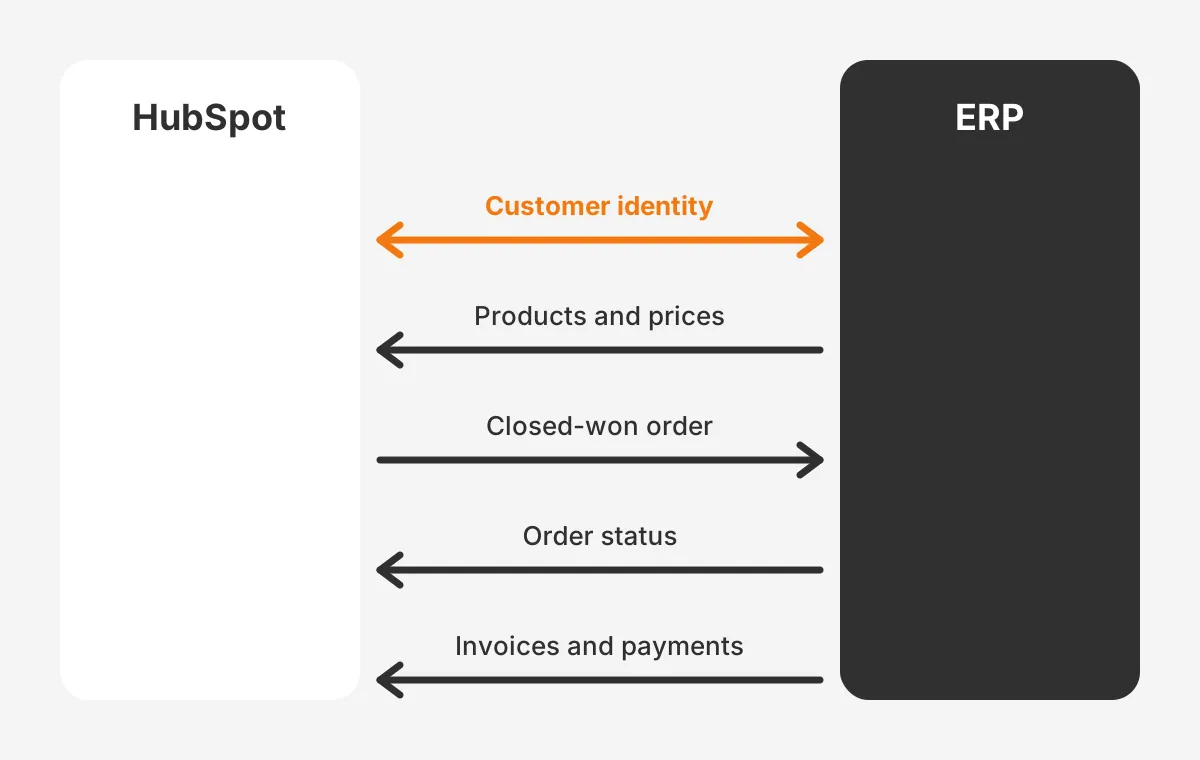
Teams that sync invoices to HubSpot should show invoice status and payment status as read-only values. A rep can see that an invoice is 30 days overdue before calling about a renewal. Inventory levels are worth syncing only if reps promise stock to customers.
Which System Should Own Each Field?
Each field needs exactly one system of record, the system allowed to change it. The other system may read the value but never overwrite it. That rule removes the cause of sync loops and settles who may change a value.
A practical way to set ownership is a field list with four columns: field name, owning system, direction and timing. Finance should sign off on every financial field. Sales operations should sign off on every lifecycle and pipeline field.
- HubSpot owns lead source, lifecycle stage, deal stage, deal owner, marketing consent and activity history.
- The ERP owns customer number, billing address, tax status, credit limit, payment terms, item prices and invoice status.
- Shared fields such as company name and main phone need a tie-break rule, such as the most recent edit wins.
Every synced record also needs an external ID. Store the ERP customer number on the HubSpot company record, and the HubSpot record ID on the ERP customer. Matching on email or company name alone creates duplicate records. It fails when a contact changes jobs or a subsidiary shares a domain.
Two-way sync is the exception, not the default. Use HubSpot two-way sync only for fields both teams edit, such as a main phone number. Financial data should flow from the ERP to HubSpot as read-only values. Finance must control what appears on an invoice.
What Are the Three Ways to Connect HubSpot?
There are three ways to connect HubSpot to ERP software: a native integration, an iPaaS, or a custom API integration. The right choice depends on the objects, the data volume and who will maintain it after go-live.
Native integration and HubSpot data sync
A native integration is a ready-made HubSpot ERP connector listed in the HubSpot App Marketplace. HubSpot data sync is HubSpot's own engine behind some of these apps.
The HubSpot data sync knowledge base article (updated October 2026) lists three directions. A sync can run both ways, only into HubSpot, or only into the other app.
The same article says HubSpot checks for changes every five minutes. After the first sync, records update within 10 minutes of a change. HubSpot custom field mapping needs a paid Data Hub subscription. Invoices usually associate only to contacts automatically.
This path suits contacts and companies with standard fields. It struggles with sales orders, line items and multi-currency pricing, because the mappings are fixed to what the connector supports.
iPaaS or middleware
An iPaaS is a hosted integration platform, such as Celigo, Workato or Boomi, that sits between the two systems.
It offers prebuilt templates, field transformations, retries and error queues. Teams often choose one when the ERP must also connect to billing and support tools. Zapier suits light, low-volume steps, but its error handling is thin for an order flow.
Custom API integration
A custom API integration is code written against the HubSpot CRM API and the ERP's API. It fits on-premise ERP systems, unusual data models and HubSpot custom objects. It also gives full control over retries and logging. The cost is a developer who must maintain it whenever either system changes.
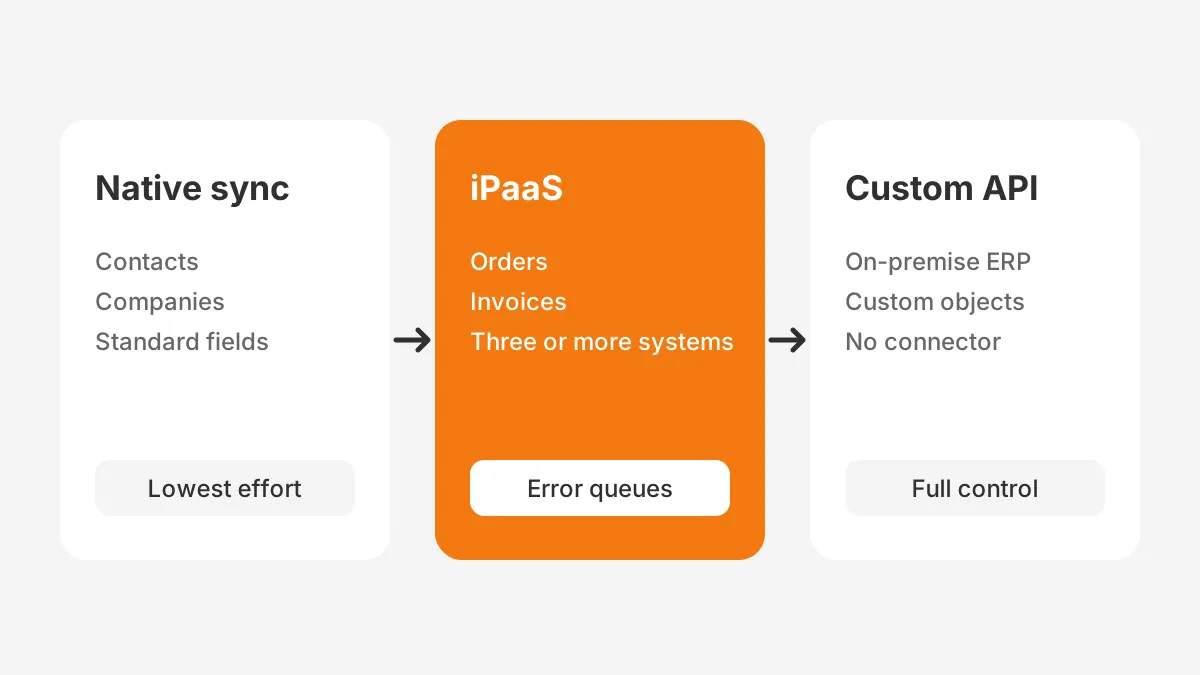
A useful decision rule: start native if only contacts and companies sync. Move to an iPaaS once orders, invoices or more than two systems join. Build custom code only when the ERP has no usable connector or the data model needs custom objects.
How Do Common ERPs Connect to HubSpot?
The HubSpot ERP integration route changes with the ERP platform. Check the HubSpot App Marketplace for a current listing before planning any build, because listings and supported objects change.
NetSuite
NetSuite appears among the connected apps on the HubSpot data sync product page. A HubSpot NetSuite integration through data sync suits customers and contacts. Sales orders, items and invoices need line-level mapping, so teams often add an iPaaS for those objects.
Microsoft Dynamics 365 Business Central
A common design for a HubSpot Business Central integration syncs customers and deals both ways. Invoices and payment status then flow one way into HubSpot. The same split suits a wider HubSpot Dynamics 365 integration. Confirm whether the connector reads sales orders or only customer accounts.
SAP Business One and Odoo
A HubSpot SAP integration depends on where SAP Business One runs. An on-premise server needs a gateway or middleware before HubSpot can reach it. A cloud-hosted instance can usually connect through an iPaaS.
A HubSpot Odoo integration raises a different question, because Odoo includes its own CRM. Decide which CRM the sales team uses. Then sync only finance and inventory data from Odoo into HubSpot.
Epicor, Acumatica, QuickBooks and Sage
Epicor and Acumatica are common in manufacturing and distribution. For a HubSpot Epicor integration or a HubSpot Acumatica integration, map the item master and price lists first. Item-heavy catalogs break a HubSpot ERP integration faster than customer data does.
Smaller companies often run accounting software instead of a full ERP. A HubSpot QuickBooks integration or a HubSpot Sage integration usually covers customers, products and invoices. Check whether the connector also handles credit notes and payments before using it for collections.
How Do HubSpot API Limits Affect the Design?
HubSpot API rate limits decide how fast an iPaaS or custom HubSpot ERP integration can move data. The HubSpot API usage guidelines set limits per private app and per account.
- Free and Starter accounts allow 100 requests per 10 seconds per private app and 250,000 requests per day.
- Professional accounts allow 190 requests per 10 seconds and 625,000 requests per day.
- Enterprise accounts allow 190 requests per 10 seconds and 1,000,000 requests per day.
- An API limit increase adds 1,000,000 daily requests each, with a maximum of two purchases.
The same page lists three more rules. Search endpoints allow five requests per second per token. Batch reads return up to 100 records per request. Error responses should stay under 5% of total daily requests, and exceeding a limit returns an HTTP 429 error.
A worked example, with assumed figures, shows the effect. A distributor sends 40,000 order-status updates a day. Sent one record per call, that uses 40,000 requests. Sent in batches of 100, it uses 400 requests. Batching keeps the HubSpot ERP integration far inside a Professional account's daily limit.
A private app is the usual way to authenticate a single-company HubSpot ERP integration. It issues an access token scoped to the objects the integration needs. Give that private app only the scopes it uses, and name it after the integration so audit logs stay readable.
Webhooks cut API traffic further. The integration no longer asks HubSpot every few minutes whether a deal changed. It receives an event when the deal stage moves to closed-won. Event-driven sync suits orders. Scheduled sync suits prices and invoices, which change in batches.
How Do You Set Up HubSpot ERP Integration?
The HubSpot ERP integration steps below follow the order that keeps rework low. Each step ends with a written check before the next one starts. The same approach applies whatever ERP sits on the other side.
- Write the business goal, such as cutting order entry time or showing invoice status to reps.
- List the objects and fields to sync, with an owner, direction and timing for each field.
- Clean both databases first, removing duplicates and closing stale accounts.
- Add external ID properties in HubSpot and matching fields in the ERP.
- Choose the connection method: native integration, iPaaS or custom API.
- Build the field mapping, including picklist values, currencies and date formats.
- Run the integration in a sandbox with real sample records.
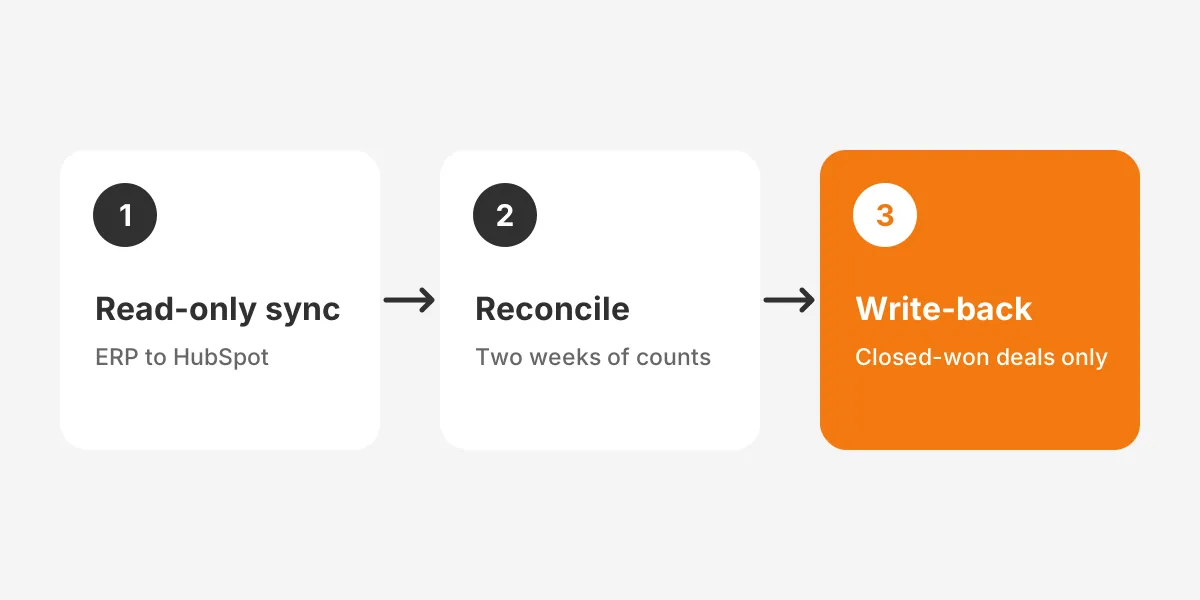
- Go live one way, from ERP to HubSpot, and reconcile for two weeks.
- Switch on write-back from HubSpot to ERP for closed-won deals only.
Step three matters more than it looks. Syncing dirty data copies the mess into both systems at machine speed. The Unboxx CRM data cleansing runbook covers deduplication rules that also suit an ERP customer list.
Field mapping is where HubSpot ERP integration projects lose most time. A HubSpot dropdown with "Net 30" will not match an ERP code of "N30". Number fields fail when the ERP sends text. Map every picklist value in a shared sheet before anyone writes a connector setting.
If HubSpot is new to the company, finish the portal setup first. The Unboxx HubSpot onboarding checklist lists the properties, pipelines and permissions that the integration will depend on.
How Do You Test and Reconcile Before Go-Live?
Test the HubSpot ERP integration with real scenarios from daily work, not with one perfect record. A HubSpot sandbox account or a copy of the ERP company lets the team break things safely. Each scenario should have an expected result written down before the test runs.
- A new customer closes a first deal with three line items.
- An existing customer closes a deal in a second currency.
- Finance changes a billing address in the ERP.
- A rep edits a price on a line item after the order exists.
- The ERP is offline for one hour during a sync.
- A contact is merged in HubSpot after syncing to the ERP.
Reconciliation checks the HubSpot ERP integration against fixed numbers. Count active customers, open orders and unpaid invoices on both sides every morning. Compare order totals for the last seven days. Any gap above zero needs a named person to explain it.
Also test deletes and merges. A record deleted in one system should not silently vanish in the other. Most teams archive instead of deleting, and log every merge with both record IDs.
Set up HubSpot ERP integration error alerts before go-live. Failed records should land in a queue that a person reviews daily. Each entry shows the error message, the record ID and a retry button. Silent failure is the worst outcome, because both teams keep trusting wrong data.
How Much Does HubSpot ERP Integration Cost?
HubSpot ERP integration cost has three parts: HubSpot subscriptions, connector or platform fees, and build effort. HubSpot publishes its own prices, connector fees vary by vendor, and build effort depends on scope.
The HubSpot Data Hub pricing page lists data sync with default field mappings on the free tier. Custom field mappings sit in Starter.
Professional starts at $800 per month with one seat, and Enterprise starts at $2,000 per month with one seat. The page also says credits are consumed when syncing data outside Data Studio.
Connector fees for a HubSpot ERP integration vary widely. A DCKAP guide to HubSpot ERP integration (2026) puts the range from free to over $1,000 a month. Free tools limit customization and volume, so price the connector against the number of records it must move.
HubSpot ERP integration build time follows the number of objects. A contacts and companies sync through a native connector is a configuration task. A full order-to-cash flow with products, orders, invoices and payments is a project of design, mapping, testing and rollout.
Whatever the scope, plan a separate budget line for monthly monitoring after go-live.
| Scope | Typical method | Main cost driver |
|---|---|---|
| Contacts and companies | Native data sync | Data Hub tier for custom mappings |
| Plus products and prices | Native or iPaaS | SKU and price list mapping |
| Plus orders and invoices | iPaaS | Platform fee and error handling |
| Custom objects or on-premise ERP | Custom API | Developer time and maintenance |
What Goes Wrong After Go-Live?
Most HubSpot ERP integration failures after launch come from changes nobody announced. A new required field in the ERP rejects every new order. A renamed HubSpot property breaks a mapping overnight. A price list update arrives with a new currency the mapping never saw.
- Duplicate records appear when matching relies on names instead of external IDs.
- Sync loops start when both systems own the same field.
- Error queues fill up when nobody is assigned to read them.
- API limits are hit when a bulk import runs during business hours.
These HubSpot ERP integration best practices prevent most of those failures. Route changes to either system through one change log. Assign an integration owner by name.
That person reviews errors daily, approves mapping changes and runs the monthly reconciliation. Manufacturers carry more data, because orders, parts and dealers multiply the records. The Unboxx CRM for manufacturers page explains how those flows fit together.
Salesforce teams face the same design questions with different limits. The Unboxx Salesforce ERP integration guide compares those tools, which helps when a group runs both CRMs.
Unboxx builds and maintains these connections as part of its CRM consulting and implementation services. The work covers field ownership, mapping, testing and the reconciliation reports that keep sales and finance aligned. Teams that only need the connector built can use the CRM integration services instead.
Frequently Asked Questions
Does HubSpot integrate with NetSuite?
Yes. HubSpot can integrate with NetSuite through HubSpot data sync, a marketplace connector, an iPaaS such as Celigo, or the API. Data sync suits contacts and companies. Sales orders, items and invoices usually need an iPaaS or custom code with external IDs on both sides.
Can HubSpot replace an ERP?
No. HubSpot is a CRM and does not run general ledger accounting, purchasing, inventory valuation or manufacturing. It can hold read-only copies of ERP data such as invoice status and stock levels. Companies that need both functions keep both systems and connect them instead.
How long does HubSpot ERP integration take?
Timing depends on scope. A contacts and companies sync through a native connector can be configured and tested in days. An order-to-cash flow with products, orders and invoices takes weeks of mapping, testing and reconciliation. Plan two weeks of one-way sync before any write-back.
Who should own the integration after launch?
One named person should own it, usually a CRM administrator or revenue operations lead. That owner reviews error queues daily, approves field mapping changes and runs monthly reconciliation with finance. Without a named owner, small sync errors build up until the two systems disagree again.
Why do HubSpot ERP syncs create duplicates?
Duplicates appear when records match on email or company name instead of an external ID. A contact changes jobs, or two subsidiaries share a domain, and the sync creates a new record. Store the ERP customer number in HubSpot and the HubSpot ID in the ERP.
Is Your Team Ready for HubSpot ERP Integration?
A team is ready for HubSpot ERP integration with three things in place. It needs clean data, a signed field ownership list and a named owner. Without those three, any connector will copy problems faster. With them, sales sees prices, orders and invoices in HubSpot, and finance stops re-keying deals.
Unboxx implements HubSpot, Salesforce, Dynamics 365 and Odoo for B2B teams and connects them to the ERP each team runs. To map your objects and choose the right method, schedule a consultation with Unboxx.
Let's create something out of this world together.
Have a project in mind? Contact us for expert design and development solutions. Let's discuss how we can help grow your business.
Ready to Unboxx Your Potential?
Build smarter systems. Automate faster. Scale confidently.