
Donor Data: How to Move Spreadsheets Into a Nonprofit CRM
A development director opens the donor spreadsheet on a Monday and finds three versions of the same family. One row says Jim, one says James, and one has an address from 2019.
Every mailing, receipt and thank-you call built on that file inherits the mess. That is the daily cost of donor data that lives in tabs instead of a system.
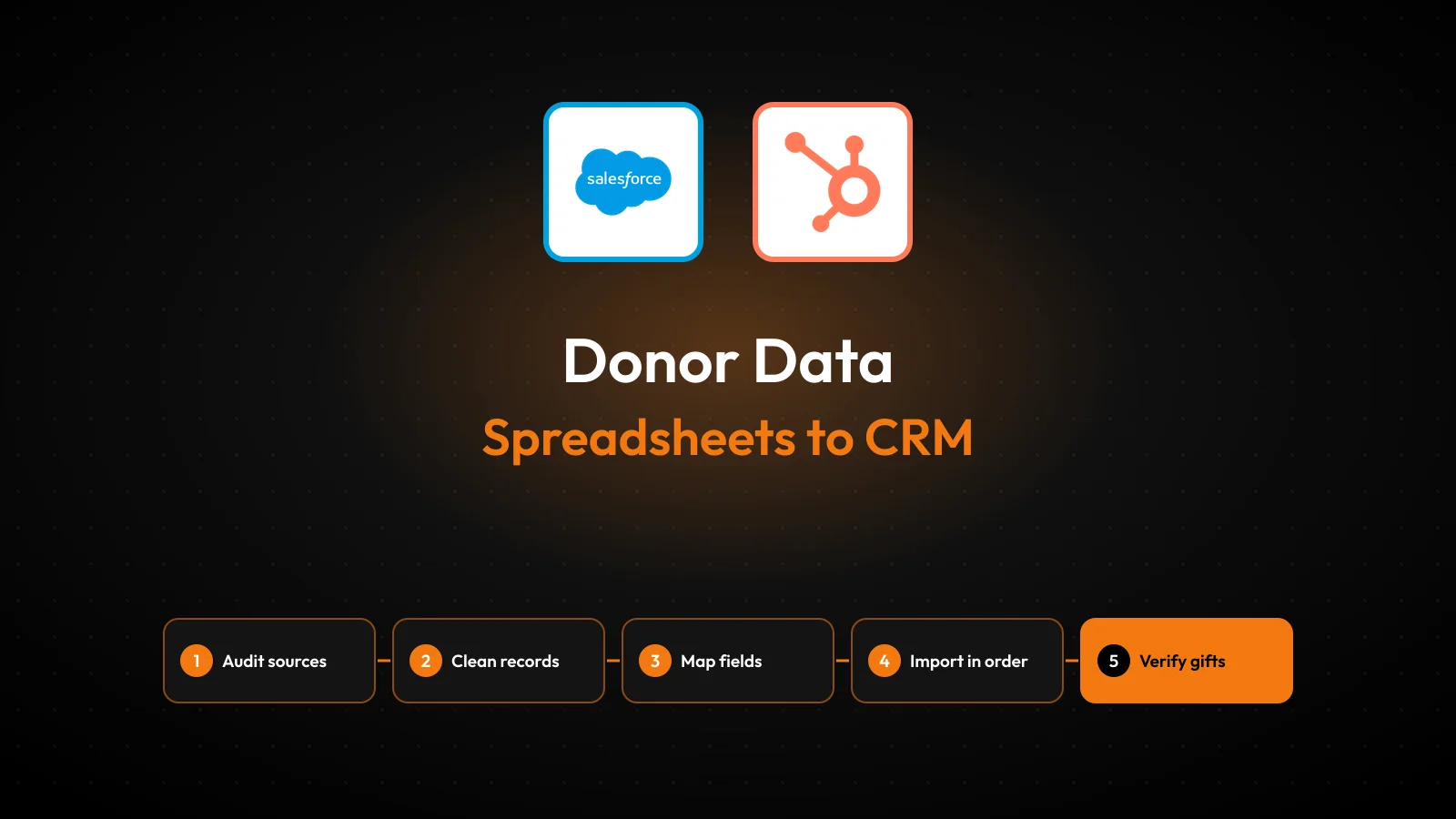
The fix is a planned move of donor data into a nonprofit CRM. It runs in six stages: audit, clean, map, test, import and verify.
Retention raises the stakes. The M+R Benchmarks 2026 study found that only 24% of new online donors gave again the next year. A CRM cannot fix retention alone, but bad records make it worse.
Key Takeaways
- Clean donor data in the spreadsheet before import, because a CRM copies every duplicate and typo it receives.
- Import contacts first, then households, then gifts, so each gift attaches to the right person.
- Test on a 10% sample, verify totals against the source file, and only then run the full migration.
What Is Donor Data and Where Does It Live?
Donor data is every fact a nonprofit holds about a supporter and their giving. It covers who the person is, what they gave, and how they want to hear from you.
In a small charity, that information often sits in Excel, Google Sheets, a payment processor export and an email tool.
The core donor data types fall into five groups:
- Contact details: name, mailing address, email, phone and employer.
- Gift history: amount, date, campaign, fund designation and payment method.
- Recurring gifts and pledges: frequency, next charge date and balance due.
- Engagement: event attendance, volunteer hours and email activity.
- Preferences: communication preferences, opt-out flags and consent records.
Donor data management is the ongoing work of collecting, updating and using these records in one place. A donor database stores the records. A nonprofit CRM adds workflows, reporting and automation on top of the same donor records.
Moving donor data from spreadsheets into a CRM is therefore a structure problem first. A spreadsheet treats each row as a flat line of text.
A CRM such as Salesforce Nonprofit Cloud, HubSpot or Bloomerang treats people, households, gifts and campaigns as linked records. The migration converts one shape into the other. For a fuller definition of the system itself, see this guide to what a nonprofit CRM does.
Why Do Spreadsheets Fail as Giving Grows?
Spreadsheets fail because they cannot link a person to their gifts, household and history without manual work. One sheet per year or per campaign becomes the norm. After three years, a single donor appears in six files, and nobody knows which address is current.
Most organizations have already made the switch. Bloomerang's donor database guide cites the Nonprofit Tech for Good Report 2023. It says 67% of nonprofits rely on CRMs to track donations. That leaves roughly one nonprofit in three without a CRM for gifts.
The cost shows up in four places:
- Duplicate records split one donor's giving history, so a major donor looks like three small ones.
- Stale addresses waste print and postage on every appeal.
- Manual receipts slow down the thank-you, which shapes the second gift.
- Reports take days, because totals live in separate tabs with different formats.
Consistent donors carry the budget. The Neon One donor data migration guide cites its Generosity Report. Only 11.7% of donors give every year over five years. That small group generates 45% of total fundraising revenue. One split or lost record among them can cost real money.
What Should You Audit Before Moving Donor Data?
Audit every source of donor data before you clean or import anything. The goal is a written inventory of files, columns, row counts and owners. Without it, a forgotten event sheet or old processor export surfaces after go-live.
Work through this audit list:
- List every file and system that holds donor records, including payment platforms and event tools.
- Record the row count, date range and owner of each file.
- Write down every column name and what it means in plain words.
- Flag columns that mix two facts, such as "Jim and Sue Smith" in one name cell.
- Note which file is the source of truth for addresses, gifts and consent.
Decide early how much history to move. Five to seven years of gift history is a sound default, because lifetime giving and loyalty depend on it. Old event lists with no gifts can stay archived as read-only files.
Set the migration goal in numbers. For example, "4,200 donor records, 18,600 gifts, zero unmatched gifts, totals within $1 of the source." This is an assumed example for a mid-sized food bank. Clear targets turn the later verification step into a check rather than a debate.
Who Should Own a Nonprofit CRM Migration?
One named data owner should own a nonprofit CRM migration, supported by a small working team. The owner approves the field map, signs off the test import and answers questions about legacy data. Without one owner, every column becomes a debate during import week.
For a typical small or mid-sized charity, the working team looks like this:
- Data owner: usually the development director or database manager, who makes final calls on donor data.
- Finance contact: reconciles donation records with bank deposits and the general ledger.
- CRM administrator: builds fields, picklists and import jobs in the new system.
- Two or three frontline fundraisers: test real tasks, such as finding a donor and logging a gift.
- Outside partner, if needed: designs the data model and runs the import for complex files.
The finance contact is the role teams forget. Gift totals in the CRM must match what finance reported to the board and the auditor. If the two numbers differ after go-live, trust in the new system drops fast.
Agree on decision rights before work starts. The data owner decides what to keep, merge or archive. Finance decides how gifts are coded. The administrator decides how fields are built. A one-page note with these rules is enough, and it stops the same argument from coming back each week.
How Do You Clean Spreadsheet Records Before Import?
Clean records in the spreadsheet, before import, because every CRM copies whatever it receives. Cleaning inside the new system is slower, and errors spread into reports from day one. Plan one to three weeks for this step on a file of 2,000 to 5,000 rows.
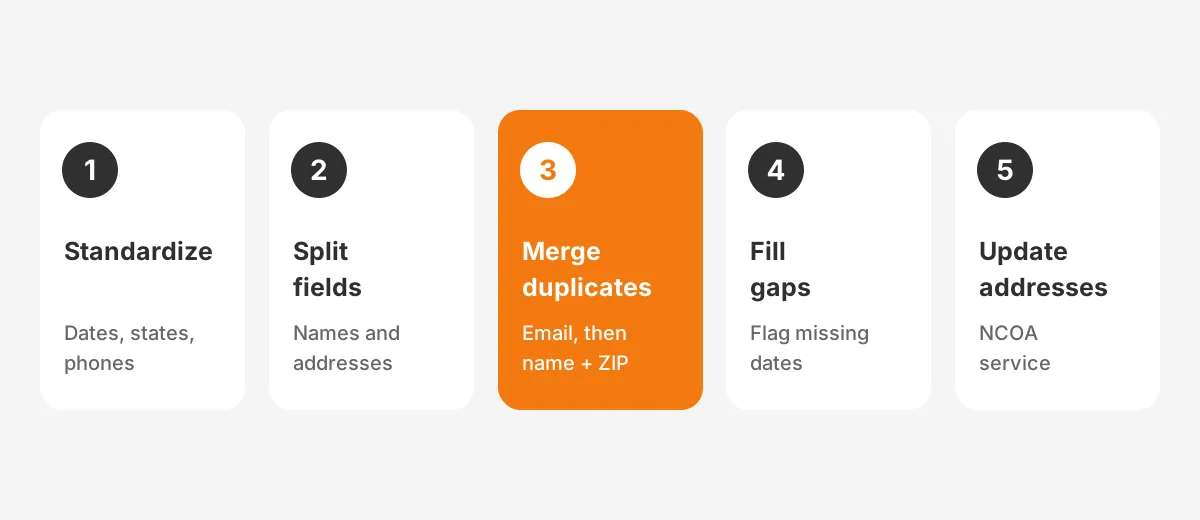
A practical cleaning sequence for donor data looks like this:
- Standardize formats: one date format, one state format and one phone format for every row.
- Split combined fields: full name into first and last name, address into street, city, state and ZIP.
- Find and merge duplicates by matching on email, then on last name plus postal code.
- Fix or flag gaps, such as gifts with no date or donors with no address.
- Update addresses through a National Change of Address (NCOA) service from the USPS.
Free tools handle most of this work. Excel and Google Sheets cover sorting, find-and-replace and the Remove Duplicates option. OpenRefine, a free open-source tool, clusters near-matches such as "St." and "Street" across thousands of rows.
Decide how households work before you merge anything. Some CRMs, including Salesforce Nonprofit Cloud, group people into household accounts.
Others treat each person as a separate contact with relationships. Your household rule decides whether "Jim and Sue Smith" becomes one record or two linked ones. The CRM data cleansing runbook covers deduplication rules by platform in more depth.
Some records should not move at all. Deceased donors, returned mail with no forwarding address and test records from old campaigns need a clear rule. Flag deceased donors rather than deleting them, so their gift history stays intact for reporting.
Finally, export an untouched master copy of the original files. Pause manual data entry in the spreadsheets once final cleaning starts, so nothing changes during the move.
How Do You Map Columns to CRM Fields?
Map each spreadsheet column to one CRM field in a written data dictionary before any import runs. The map shows where every column lands, how values change on the way, and which columns are dropped. Most lost donor data traces back to a column nobody mapped.
The table shows common mapping decisions for nonprofit records:
| Spreadsheet column | CRM field | Change on the way |
|---|---|---|
| Full Name | First Name, Last Name | Split into two fields |
| Address | Street, City, State, ZIP | Split into four fields |
| Email Address | Primary Email | Lowercase, trim spaces |
| Total Donations | Lifetime Giving | Recalculated from gift rows, not imported |
| Fund | Gift Designation | Values matched to a picklist |
| Do Not Mail | Mail Opt-Out | Yes or No converted to a checkbox |
Three mapping rules save the most rework. First, never import a total that the CRM can calculate from gift rows. Second, convert free-text values into picklists, so "Gala 2024" and "gala24" become one campaign. Third, give every legacy row a unique external ID.
The external ID is the most useful column you can add. Put the old row number or donor ID into a dedicated CRM field. Gifts then match to donors by that ID rather than by name, which removes guesswork.
Resist building a custom field for every column. Each extra field is one more thing to fill, report on and clean later. If a spreadsheet column has been empty for two years, archive it instead of building a field for it.
Keep consent fields in the map, even if they look minor. Opt-out flags, email consent dates and communication preferences carry legal weight. A migration that drops them can send appeals to people who asked to stop.
Which Import Tools Fit Each Nonprofit CRM?
The right import tool depends on the CRM and the number of records. Small files fit the built-in wizard of most platforms. Larger files, or files with linked gifts, need a bulk loader or an integration tool.
| CRM | Built-in option | For larger or linked files |
|---|---|---|
| Salesforce Nonprofit Cloud or NPSP | Data Import Wizard | Data Loader or an ETL tool |
| HubSpot | Import tool with CSV or Excel files | Separate imports per object, linked by email or ID |
| Bloomerang, Neon CRM, DonorPerfect | Vendor import templates | Vendor migration services |
| Little Green Light | Built-in import tool | Staged imports by record type |
Salesforce sets clear size bands. According to the Integrate.io donor data migration guide, the Data Import Wizard handles up to 50,000 records. Data Loader supports up to 5 million records and runs as a desktop app.
The Nonprofit Success Pack (NPSP) also includes an NPSP Data Importer. It can create a contact, a household and a donation from one spreadsheet row. That suits a first import from a simple giving sheet.
HubSpot matches contacts on email address during import, so clean emails matter more there. A donor with two emails will become two contacts unless you merge first. Teams moving to HubSpot can compare plans and limits in this review of HubSpot for nonprofits.
In practice, file size is only half the choice. Links between records matter too. A food bank with 4,200 donors and 18,600 gifts fits the wizard on size.
Its gifts still need matching to donors by external ID, which Data Loader handles more reliably. In this assumed example, contacts go through the wizard and gifts through Data Loader.
Vendor tools such as Bloomerang, Neon CRM and DonorPerfect usually provide import templates. Filling their template column by column is often faster than building a custom field map.
In What Order Should Records Be Imported?
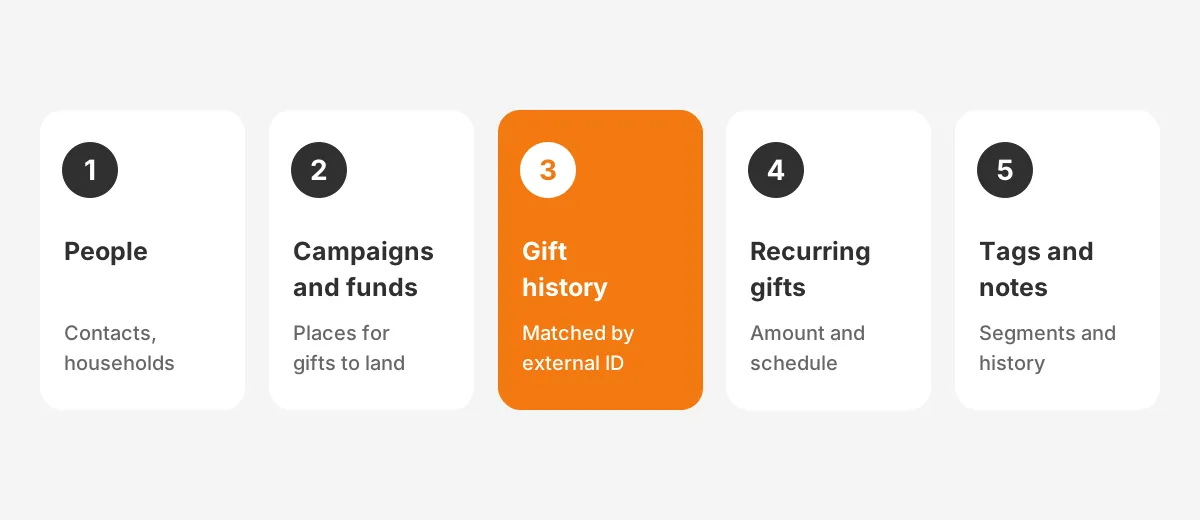
Import records in dependency order: people first, then the records that point to them. A gift cannot attach to a donor who does not exist yet. Importing out of order leaves orphaned gifts that someone must fix by hand.
The standard import order for donor data is:
- Organizations, such as companies and foundations that give.
- Contacts and households, each carrying its external ID.
- Relationships, such as spouse links and employer connections.
- Campaigns and funds, so gifts have somewhere to land.
- Gift history, matched to contacts by external ID.
- Recurring gifts and pledges, with amount, frequency and next charge date.
- Tags, segments, notes and engagement history.
Keep gifts and contacts on separate tabs, then save each tab as its own CSV file. One file per record type keeps the field map simple and makes errors easier to trace.
Recurring gifts need extra care. The CRM record and the payment processor must agree on amount and schedule. Moving the record does not always move the card token, so confirm with the processor before cutover.
Time the final import well. Fundraising CRM implementation timelines often avoid December, because year-end giving is the worst moment to change systems.
How Do You Test and Verify the Migration?
Test the import on a sample before the full run, then verify the full run against the source files. A test exposes mapping errors while they are cheap to fix. Verification proves that nothing was lost.
A good test import uses about 10% of donor records. Pick a sample that includes edge cases: households, organizations, donors with recurring gifts, and donors with opt-outs. A random sample of easy rows hides the problems.
After the full import, run these checks:
- Row counts per record type match the source files.
- Total gift amounts by year match the spreadsheet totals.
- Top donors' lifetime giving matches the old figures.
- A spot-check of 25 to 50 donor records matches field by field.
- Opt-out flags and consent dates arrived on the right people.
Here is a worked example with assumed figures. The food bank's source file shows $1,284,500 in gifts across 18,600 rows. The CRM shows $1,281,200 across 18,571 gifts. The 29 missing rows trace to gifts with no date, which the import rejected. Fixing those rows closes the gap.
Reconcile the donation records with finance as a separate check. Compare yearly gift totals in the CRM with the totals in the general ledger and bank deposits. Small gaps usually come from refunds, soft credits or in-kind gifts that were recorded differently.
Numbers prove the data arrived. A short user acceptance test proves people can work with it. Ask two or three fundraisers to find a known donor, log a new gift and pull a year-end report. If a task takes longer than in the spreadsheet, fix the layout before launch.
Record every fix in a simple issue log with the row, the problem and the change made. That log becomes the audit trail for the donor data migration. It also shows the board that the move was checked, not assumed.
Keep the old spreadsheets read-only for at least six months. They answer audit questions and settle disputes about history that the import changed.
How Do You Keep Donor Data Clean After Go-Live?
Keep donor data clean with a named data steward, entry rules and a fixed review schedule. A migration resets quality once. Without upkeep, duplicates and stale addresses return within a year.
Set entry rules on day one. Require email or postal address for every new donor, use picklists for campaigns and funds, and turn on duplicate alerts. Limit who can bulk-import, so one bad file cannot undo the cleanup.
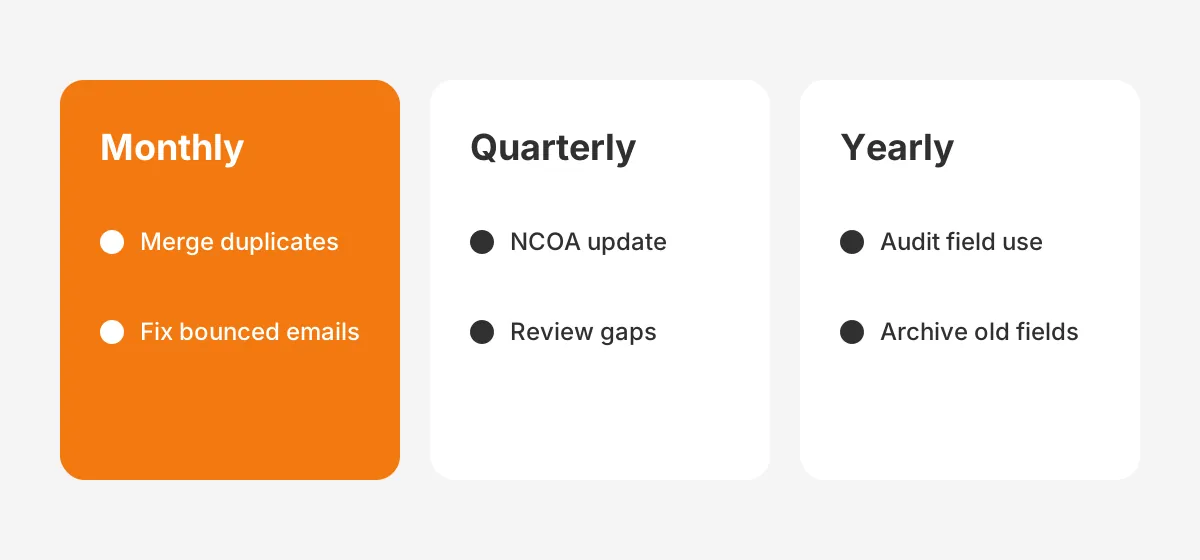
Then run a simple maintenance schedule:
- Monthly: merge new duplicates and fix bounced emails.
- Quarterly: run an NCOA address update and review records with missing fields.
- Yearly: audit field use, archive unused fields and review donor data management rules.
Train new staff on the entry rules in their first week. A one-page guide with screenshots of the donor form, the gift form and the duplicate alert covers most mistakes. Donor data quality depends more on habits than on software settings.
Security belongs in the same plan. Give each user the lowest access their role needs, turn on two-factor sign-in, and delete local CSV copies after import. Donor data holds home addresses and giving amounts, so treat it as sensitive.
The payoff shows up at renewal time. M+R Benchmarks reports that overall online one-time donor retention was 48% in 2025. Accurate addresses, names and gift history give every renewal appeal a better chance. Unboxx supports this work through its CRM for nonprofits service, from field mapping to administration after launch.
Frequently Asked Questions
Can a nonprofit keep using spreadsheets alongside a CRM?
A nonprofit can keep spreadsheets for analysis, but not as a second record system. Two live sources of donor data drift apart within weeks. Use the CRM as the single source of truth. Export reports from it when needed, and keep old files read-only.
How long does a spreadsheet to CRM migration take?
A spreadsheet to CRM migration for under 5,000 clean donor records often takes four to eight weeks. That covers audit, cleaning, mapping, testing, import and training. Larger files with years of gift history, recurring gifts and households can take three months or more.
Is it worth migrating old giving history?
Migrating giving history is worth it for at least five to seven years. Lifetime giving, donor loyalty and upgrade signals all depend on it. Older rows with no gift, such as dated event sign-ups, can stay in an archived spreadsheet.
Can recurring gifts move to a new CRM?
Recurring gifts can move, but the CRM record and the payment processor must stay in step. Migrate the amount, frequency and next charge date, then confirm the card or bank token still works. Check every monthly donor's first charge after cutover to catch failures early.
Do you need a consultant to migrate donor data?
A consultant is optional for a small, clean file and a simple CRM. Help pays off when donor data spans three or more systems, households, recurring gifts or Salesforce Nonprofit Cloud. Unboxx offers Salesforce Nonprofit Cloud consulting for teams that want the field map and testing handled.
Is Your Donor Data Ready to Move?
Your donor data is ready to move when every source is listed and the file is clean. The field map needs a sign-off too.
Of all the stages, the import itself takes the least time. Audit, cleaning, testing and verification decide whether the new CRM starts with records your team trusts.
Unboxx helps nonprofits plan and run this work, from the first audit to clean reports after go-live. If your donor data sits in spreadsheets today, book a free consultation. The team will size a migration plan to your records.
Let's create something out of this world together.
Have a project in mind? Contact us for expert design and development solutions. Let's discuss how we can help grow your business.
Ready to Unboxx Your Potential?
Build smarter systems. Automate faster. Scale confidently.