
HubSpot Salesforce Integration: Setup, Sync Rules, API Use
Marketing works in HubSpot, sales works in Salesforce, and nobody trusts the lead count. MuleSoft's 2025 Connectivity Benchmark Report found that only 29% of an organization's applications are connected on average. The same survey of 1,050 IT leaders found that 95% struggle to integrate data across systems.
The HubSpot Salesforce integration is HubSpot's native connector that keeps contacts, companies, deals and activities in step. Whether it runs cleanly depends on the HubSpot Salesforce integration requirements, sync rules, API budget and setup order.
Key Takeaways
- The HubSpot Salesforce integration needs a Professional or Enterprise HubSpot subscription and a Salesforce edition with API access.
- Four sync rules decide which value wins, so every field mapping needs an owner and a written rule.
- Each contact sync can use up to four Salesforce API calls, so budget the allocation before you turn sync on.
What Is the HubSpot Salesforce Integration?
It is a native integration that HubSpot builds, supports and lists in the HubSpot Marketplace. Once connected, it runs an ongoing, bi-directional sync between the HubSpot CRM and the Salesforce CRM. Linked records stay linked, so an edit on one side can update its match on the other.
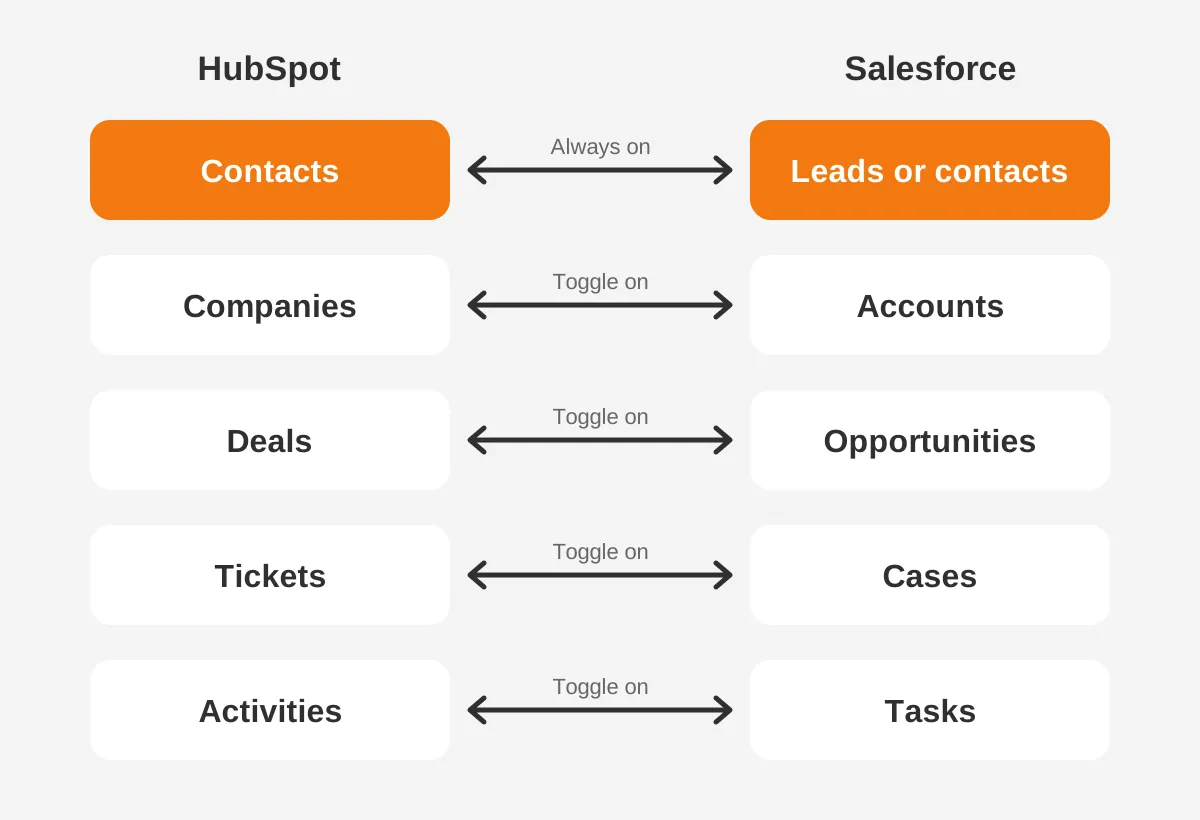
The HubSpot Salesforce sync works object by object. Contacts pair with leads or contacts, companies with accounts, and deals with opportunities. Calls, meetings and sales emails logged in HubSpot arrive in Salesforce as tasks.
A HubSpot and Salesforce integration keeps two live systems in step. It is not a moving tool.
That distinction matters when a team plans a platform switch. A full HubSpot to Salesforce migration moves history once and retires the old system. The HubSpot Salesforce integration keeps both systems live, usually with marketing in HubSpot and sales in Salesforce.
The most common reason to run the HubSpot Salesforce integration is a split stack. Marketing Hub runs forms, emails and lead scoring. Sales Cloud runs pipeline, quotes and forecasting. The connector hands marketing-qualified leads to sales and sends deal outcomes back for attribution.
A HubSpot Salesforce integration also changes reporting. Closed-won revenue from Salesforce opportunities flows back to HubSpot deals. Marketing can then report on which campaigns produced pipeline, without monthly spreadsheet exports from Salesforce.
What Do You Need Before Connecting Both Platforms?
You need four things before you connect HubSpot and Salesforce. They are the right HubSpot tier, a supported Salesforce edition, an administrator as connected user, and open network access. HubSpot's install guide lists each requirement.
| Requirement | What HubSpot asks for | Common blocker |
|---|---|---|
| HubSpot subscription | Professional or Enterprise in Marketing Hub, Sales Hub, Service Hub, Data Hub, Content Hub or Smart CRM | Starter and Free accounts are not on the list |
| HubSpot user | Account Access permissions | A marketer without admin rights starts the install |
| Salesforce edition | An edition with Salesforce API access, or Salesforce Professional Edition | Group Edition is not supported |
| Connected user | A Salesforce system administrator | A personal login that later leaves the company |
| Network | Relax IP Restrictions on the HubSpot app | Enforce IP Restrictions on Every Request blocks the connection |
The connected user's profile needs API Enabled, View Setup and Configuration, Download AppExchange Packages and Customize Application. Add Modify All on every object you plan to sync. Deal sync and HubSpot Embed also require Modify Metadata.
Treat the connected user as an integration account, not a person. The sync can only do what that user can do. If the user cannot view leads, leads will not sync. If the user is deactivated, the sync stops.
Two limits shape the design early. One HubSpot account connects to one Salesforce instance, and each HubSpot account installs the app separately. Salesforce Government Cloud is supported, so public sector teams are not excluded.
Check these HubSpot Salesforce integration requirements in a short readiness review. A Marketing Hub Professional account with a Salesforce Professional Edition org meets the tier rules. The remaining checks sit in profiles, field-level security and IP settings.
Which Records Sync Between HubSpot and Salesforce?
Contacts, companies, deals, tickets and activities sync between HubSpot and Salesforce, each to its matching Salesforce object. Contact sync is on by default and cannot be turned off. Every other object needs its own sync toggle in the Salesforce integration settings.
| HubSpot object | Salesforce object | Default state |
|---|---|---|
| Contacts | Leads or contacts | Always on |
| Companies | Accounts | Toggle on |
| Deals | Opportunities | Toggle on, needs Modify Metadata |
| Tickets | Cases | Toggle on |
| Activities | Tasks | Timeline sync or Activity sync |
| Custom objects | Custom and supported standard objects | Enterprise only |
HubSpot Salesforce lead sync is the first design decision. HubSpot can create new Salesforce records as leads or as contacts. HubSpot advises against lead mode when automatic company creation is on, because duplicate companies can result.
Deals need care with opportunity stages. Each HubSpot deal stage must match an active Salesforce stage, or the record fails with a stage error. Map pipelines one stage at a time and retire stages in both systems together.
A HubSpot Salesforce integration with deals turned on also needs a pipeline owner. Decide whether reps create opportunities in Salesforce only, or whether HubSpot deals may create them too.
Activities move through two features. Timeline sync is one-way and turns HubSpot events into Salesforce tasks. HubSpot Salesforce activity sync is two-way and covers tasks, sales emails, calls and meetings. If both are on for one event type, Activity sync wins to prevent duplicates.
Turning on Activity sync does not import existing Salesforce tasks. Run an import if reps need that history in HubSpot.
Timeline sync has time windows. Marketing email events sync only if they happened within 30 days of the contact syncing. Form submissions sync only within one year. Emails captured by Einstein Activity Capture in Salesforce do not sync to HubSpot.
Custom objects can sync on Enterprise subscriptions. The HubSpot custom object must exist before you set up the sync, and it needs at least one required field.
How Do the Four Sync Rules Settle Conflicts?
Each field mapping carries one of four sync rules, and the rule decides which system's value wins. HubSpot's field mapping guide defines them as follows.
| Sync rule | Which value wins | Good fit |
|---|---|---|
| Prefer Salesforce unless blank | HubSpot fills the field only when Salesforce is blank | Job title, phone, industry |
| Always use Salesforce | HubSpot never sends data to Salesforce | Account tier, contract fields |
| Two-way | The most recent value wins in both directions | Lead status, contact owner |
| Don't sync | No data passes either way | Internal scoring notes |
Two-way sync suits fields that both teams edit. It also passes deletions both ways, so a cleared value in HubSpot clears Salesforce. Use it for lifecycle stage only when both teams agree who moves a record forward.
The contact owner mapping can only be two-way. A HubSpot owner syncs to Salesforce only if the name and email match an active Salesforce user. Otherwise the Owner ID resets to the last Salesforce value.
Four HubSpot Salesforce field mapping rules prevent most cleanup work later:
- Map each Salesforce field once, because duplicate field mappings can create sync loops.
- Match data types, such as dropdowns to picklists and number to double.
- Expect lookup fields to arrive as 18-digit Salesforce record IDs, not labels.
- Resync existing records after a new mapping, because values do not sync backwards.
HubSpot allows 500 field mappings per object. Treat that as a ceiling, not a target. A shorter map is easier to audit and cheaper in API calls.
How Do You Set Up the HubSpot Salesforce Integration?
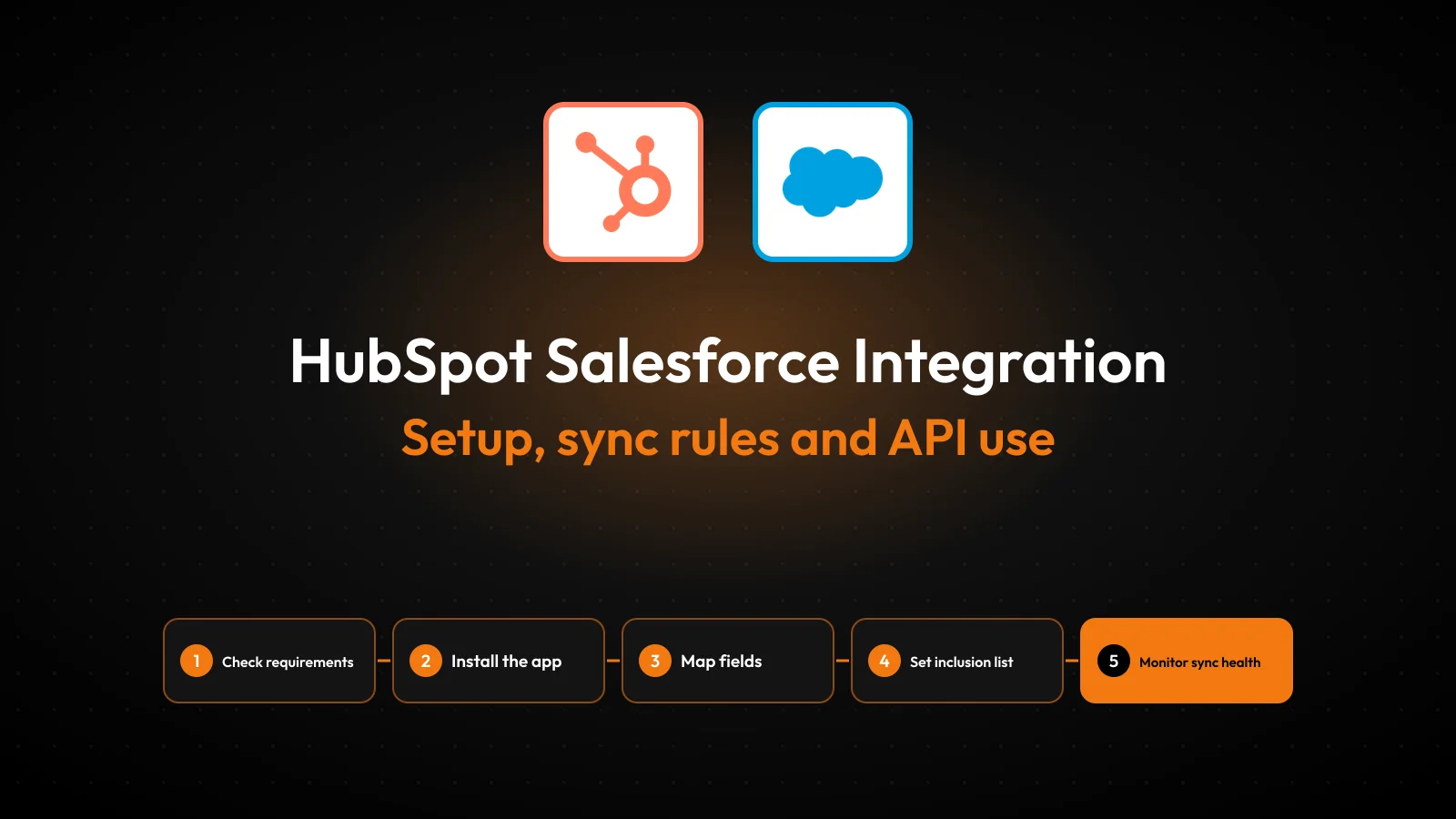
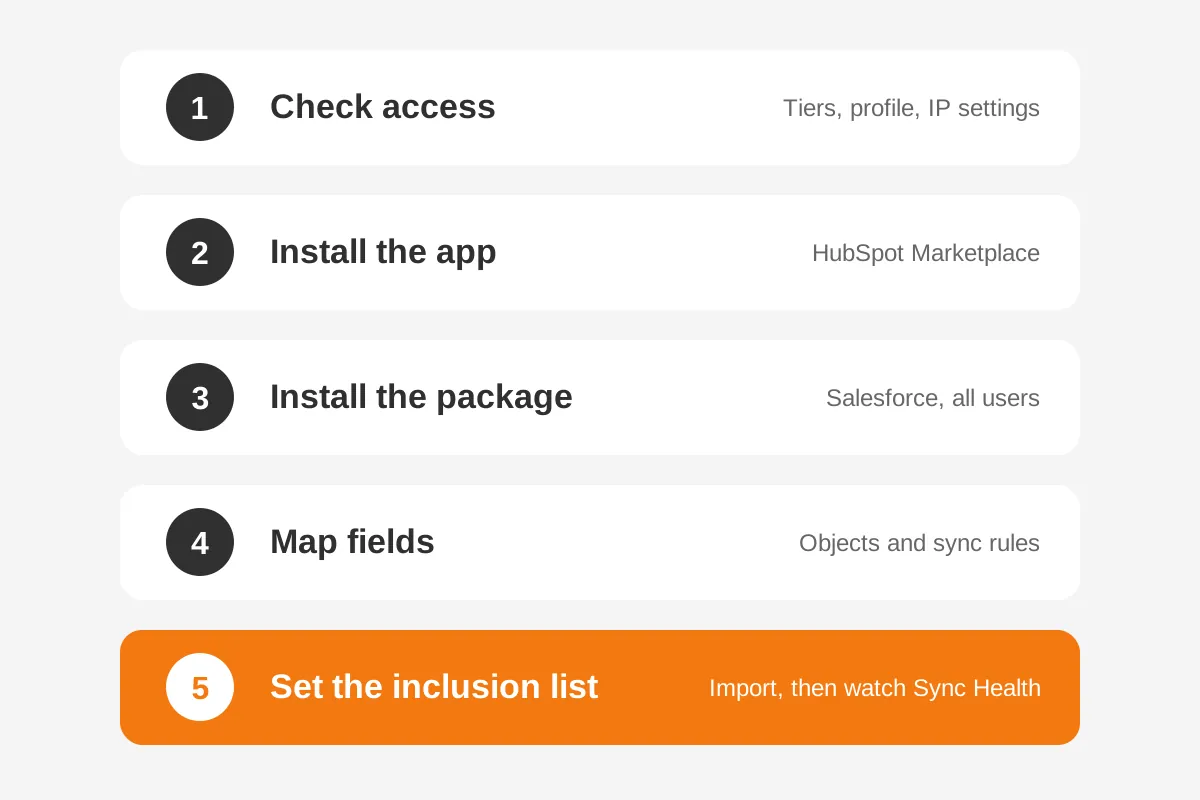
You set up the HubSpot Salesforce integration from the HubSpot Marketplace, then finish it inside Salesforce. The full HubSpot Salesforce integration setup has five stages, and the first one happens before anyone clicks Install.
Here is how to integrate HubSpot with Salesforce in order:
- Check access: confirm tiers, the connected user's profile and IP settings.
- Install the app: search the HubSpot Marketplace for Salesforce, then log in to Salesforce.
- Install the Salesforce integration package for all users, then grant access.
- Map fields: choose objects, field mappings and a sync rule for each field.
- Set the inclusion list, import records and watch Sync Health for a week.
Test the HubSpot Salesforce integration in a sandbox first when the org has heavy automation. HubSpot lets you tick a sandbox checkbox during install. A sandbox test shows which flows and validation rules reject HubSpot updates before production users see errors.
A new HubSpot Salesforce integration does not sync records the moment the install finishes. They sync through an import or through automatic sync triggers. Plan the first import as a project step, with a filter, an owner and a rollback plan.
Before go-live, test the HubSpot Salesforce integration with 20 to 50 real records. Add a contact to the inclusion list and confirm the Salesforce lead appears. Then edit a mapped field in Salesforce and confirm HubSpot updates within one sync cycle.
Write down three things for every HubSpot Salesforce integration before launch. They are the field map, the sync rule for each field, and the person who approves changes. That document becomes the reference when a sync error appears months later.
HubSpot's legacy managed package with the Visualforce module is being deprecated. HubSpot recommends HubSpot Embed instead. If your org still has the old package, remove it as part of the integration work.
Teams that integrate HubSpot with Salesforce alongside other systems should plan the full map first. A HubSpot ERP integration adds a third source of truth for accounts and orders. Decide which system owns each field before the first sync runs.
A specialist CRM integration services team can run this as a fixed-scope project. That usually covers the readiness review, the field map, sandbox testing and the first import.
When Do Records Sync, and How Often?
HubSpot checks both systems for new or updated information approximately every 15 minutes. That answers how often HubSpot syncs with Salesforce, per HubSpot's import and sync guide. A sync runs when a record has changed and its settings allow it.
This cycle makes the HubSpot Salesforce integration near real time, not instant. A form fill can take up to one cycle to reach Salesforce. Lead routing rules should allow for that delay.
These events trigger a sync automatically:
- A contact submits a form or is created in HubSpot.
- A mapped HubSpot contact, company or deal property is updated.
- A mapped Salesforce lead, contact, account or opportunity field is updated.
- A contact joins the inclusion list in HubSpot.
- A synced activity, such as a call or meeting, is logged.
A Salesforce formula field never triggers a sync on its own. An update to a mapped field used in the formula does. Removing a lead from an active campaign does not trigger a sync either.
The inclusion list controls what leaves HubSpot. Only contacts in the inclusion segment sync from HubSpot to Salesforce. If no segment is selected, every HubSpot contact syncs. Build the segment around sales readiness, such as lifecycle stage of marketing-qualified lead or later.
The inclusion list does not filter the other direction. If Salesforce leads create HubSpot contacts, a contact is created even when it is outside the segment.
Salesforce campaigns sync through forms. A lead or contact is added to an active Salesforce campaign when a HubSpot form submission sends it there. The campaign must be marked Active in Salesforce.
How Many Salesforce API Calls Will the Sync Use?
A single contact sync can use up to four Salesforce API calls, according to HubSpot. Every call counts against the org's daily allocation. That allocation is the real Salesforce API call limit for the HubSpot Salesforce integration.
Salesforce's API request limits page sets the formula. Salesforce Enterprise Edition and Professional Edition with API access get 100,000 calls per 24 hours. Each full Salesforce license adds 1,000 calls. Unlimited Edition adds 5,000 per license.
Salesforce's own example is an Enterprise org with 15 Salesforce licenses. Its daily API request allocation is 115,000 calls. The limit applies to the whole org, not each user, and managed package calls count too.
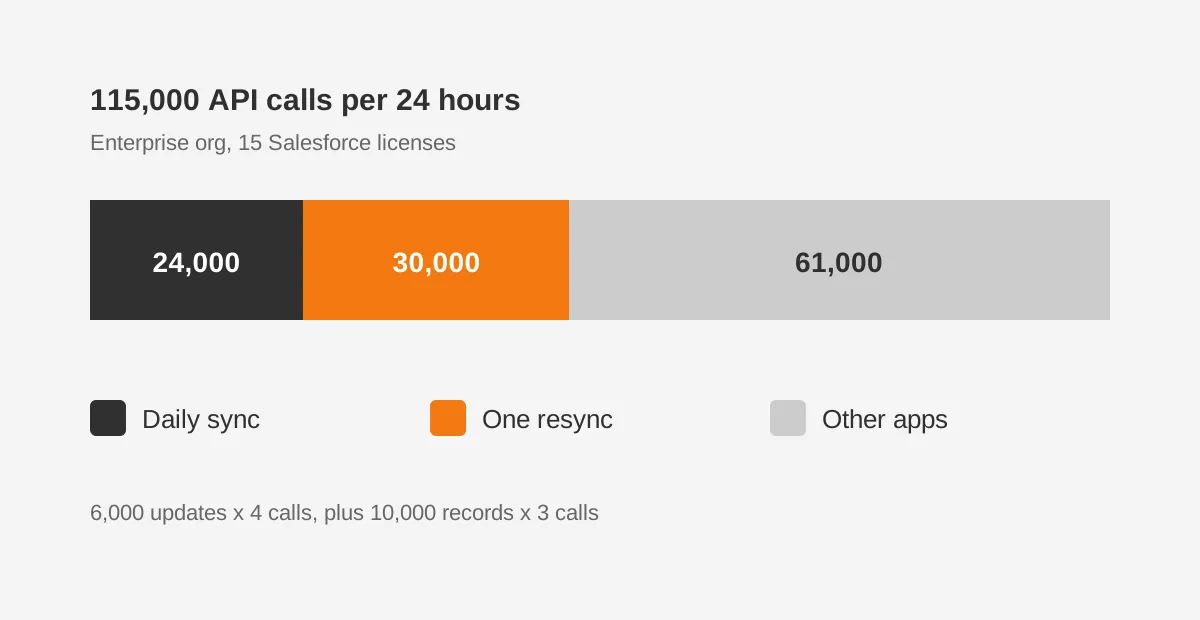
Here is a worked example with assumed figures. Assume HubSpot syncs 6,000 contact updates a day at four calls each. That uses 24,000 calls. A one-off resync of a 10,000-contact segment needs 30,000 calls, because HubSpot asks for three calls per record.
Together, those two jobs use 54,000 of the 115,000 calls. The remaining 61,000 calls must cover every other app connected to that Salesforce org.
Running out of calls stalls the HubSpot Salesforce integration and every other connected app. Keep headroom, and schedule large resyncs for quiet days.
Manage HubSpot Salesforce integration API limits from Sync Health. It shows calls used in the last 24 hours and an editable figure allocated to HubSpot. Set that figure from your Salesforce limit and current usage, not from a guess.
Large imports are paced to protect the same budget, and HubSpot warns they can take hours.
Which Sync Errors Break the Integration?
HubSpot groups sync errors that break the HubSpot Salesforce integration into eight types on the Sync Health tab. Permission, picklist, duplicate and custom code errors are the ones a setup plan can prevent.
| Error type | Typical cause | Fix |
|---|---|---|
| Permissions | The connected user lacks Read and Edit on a field | Update field-level security |
| Picklists | A restricted picklist rejects a HubSpot value | Align picklist values in both systems |
| Duplicates | A Salesforce duplicate rule or a reused email | Merge records, then resync |
| Custom code | Flows or validation rules block the update | Exempt the integration user or relax the rule |
| Property values | A string is too long or a required value is missing | Fix the source record |
Every HubSpot Salesforce integration error in that table traces back to a setting, not a software bug. Picklist errors are the easiest to miss.
Mismatched state or country values, inactive opportunity stages and inactive owners all stop a record. Record types can also block deals when no default sales process exists.
HubSpot Salesforce duplicate records usually start with mixed lead and contact handling. A record created as a lead in one flow and a contact in another splits the history. A CRM data cleansing pass before the first import removes most of this risk.
To fix Salesforce sync errors at scale, use the bulk resync. It handles 100 errors at a time. Larger backlogs need an import or an update to a mapped property. Set sync error notifications to instant, daily or weekly, so problems do not pile up.
Validation rules deserve a named owner. A Salesforce admin can add a bypass for the connected user. Limit it to rules that protect data HubSpot never edits.
Name one person to own the error queue. Otherwise a sales rep chasing a missing record is often the first to notice a broken sync.
When Should You Use Middleware Instead?
Use middleware when data must change in transit or when more than two systems share a record. It also fits accounts below HubSpot Professional. The native connector syncs fields. It does not transform data across a chain of apps.
For a two-system stack, the native HubSpot Salesforce integration stays the simpler choice, because HubSpot builds and maintains it.
Zapier offers a lighter Salesforce HubSpot integration through triggers and actions. Salesforce is a premium app on Zapier's paid plans. That suits single events, such as creating a Salesforce lead from one HubSpot form.
MuleSoft and similar integration platforms suit enterprise programs. They handle ERP, billing and support data in one design. The same benchmark report says IT teams spend 39% of their time on custom integrations.
The HubSpot Salesforce integration cost has three parts. The connector itself needs the right HubSpot tier, and Salesforce needs API access. The rest is people time for field design, testing, error cleanup and monitoring.
Some marketing teams still weigh the HubSpot Salesforce connector against running Pardot inside Salesforce. If that choice is still open, compare Pardot vs HubSpot before you build either sync.
Teams often pair the native connector with lead scoring. HubSpot sends the score to Salesforce, and sales works the queue there. A clear HubSpot lead scoring model keeps that field useful on both sides.
Frequently Asked Questions
Can HubSpot Starter connect to Salesforce?
No. HubSpot lists the HubSpot Salesforce integration for Professional and Enterprise subscriptions only. On lower tiers, does HubSpot integrate with Salesforce? Only through third-party tools such as Zapier, which pass single events rather than a full sync. Starter teams need one hub at Professional.
Can you sync custom objects with Salesforce?
Yes, on HubSpot Enterprise subscriptions. HubSpot can sync custom objects with Salesforce custom objects and supported standard objects. The HubSpot custom object must exist first and needs one required field. Field rules are Two-way, Always use Salesforce or Always use HubSpot, set per mapping.
Does deleting a HubSpot contact delete it in Salesforce?
No. Deleting a contact in HubSpot does not delete the Salesforce contact or lead. The reverse is a setting. When a Salesforce lead or contact is deleted, HubSpot can delete the matching contact or do nothing. Choose this setting before the first import.
Can one HubSpot account connect to two Salesforce orgs?
No. One HubSpot account connects to one Salesforce instance. A company with two Salesforce orgs needs two HubSpot accounts or a consolidation project first. Switching to a new production org loses company-account and deal-opportunity associations, so plan that move with care.
Should you use the integration for a one-time migration?
No. HubSpot designed the HubSpot Salesforce integration for ongoing two-way sync. For a one-time move, HubSpot recommends Smart Transfer instead. Running both on the same records creates duplicates. Finish the migration first, then turn on the integration if both systems stay in use.
Is Your HubSpot Salesforce Integration Ready to Scale?
A HubSpot Salesforce integration scales when each field has an owner and the API budget has headroom. The inclusion list must also match sales readiness. HubSpot Salesforce integration best practices rest on data governance, plus a weekly Sync Health review owned by revenue operations.
Unboxx has built connected Salesforce and HubSpot revenue operations for a mid-sized B2B company. Book a consultation to review your field map, sync rules and API budget before your next rollout.
Let's create something out of this world together.
Have a project in mind? Contact us for expert design and development solutions. Let's discuss how we can help grow your business.
Ready to Unboxx Your Potential?
Build smarter systems. Automate faster. Scale confidently.