

An associate opens the deal record for a target company and finds a clean pipeline entry. The signed NDA sits in an inbox. The CIM lives on a shared drive, and last year's IC memo is lost.
Finance teams feel this every week. A 2026 survey by Hebbia and Centiment found a clear pattern. Half of finance professionals spend six or more hours a week searching documents.
The fix is to link CRM records to deal documents. Every company, deal and contact record then points to the files behind it. There are three ways to link CRM records to deal documents: native attachments, reference links or automated deal folders.
Below, each method is set against the others, with the platform limits that decide the fit. The steps to link CRM records to deal documents come at the end.
Key Takeaways
- Most PE firms should keep files in SharePoint, Box or Google Drive and link them to CRM records by reference.
- Attach documents to the deal record first, then roll key files up to the company and contact records.
- Automate one folder per deal at the first deal stage, and let access follow the document system.
Why link CRM records to deal documents?
A PE firm should link CRM records to deal documents because the two hold different facts. The record shows who and when, while the files show what was agreed. Without the link, a deal team rebuilds context from email every time a company returns to the deal pipeline.
Deal flow in private equity repeats. A company the firm passed on can return through deal sourcing years later. If the team took time to link CRM records to deal documents, the old CIM is one click away. So are the reasons for passing and the last valuation.
Vendors in this space build their pitch around the same idea. Affinity (2026) describes CRM use across six stages of the deal lifecycle, from sourcing to exit and fundraising. At the screening stage, the team checks a new CIM against what is already logged on the deal.
The payoff shows up in three places when firms link CRM records to deal documents:
- Faster screening, because prior files on the company appear on the record.
- Cleaner investment committee prep, because the IC memo and its inputs sit on one deal record.
- Safer audits, because the firm can show which NDA covered which data and when.
The CRM becomes the single source of truth for relationships. The document system stays the source of truth for files. Linking the two keeps each system doing its own job. For the wider case for a fund CRM, see why VC and PE firms need a CRM.
What deal documents belong on each CRM record?
Each deal record should hold the documents that change a decision. These are the NDA, the CIM, the LOI, the IC memo and the diligence reports. Routine email threads and draft spreadsheets can stay in the document system without a link.
The question of what documents belong on a deal record is easier with a deal document checklist. The table below lists the core files, the deal stage where each appears and the record it belongs on.
| Document | Deal stage | Primary CRM record | Usual owner |
|---|---|---|---|
| Teaser | Sourcing | Deal | Associate |
| Non-disclosure agreement (NDA) | Sourcing | Deal and company | Deal lead or counsel |
| Confidential information memorandum (CIM) | Screening | Deal | Associate |
| Investment committee memo (IC memo) | IC review | Deal | Vice president |
| Letter of intent (LOI) | Offer | Deal and company | Deal lead |
| Quality of earnings report (QoE) | Diligence | Deal | Deal team with advisers |
| Purchase agreement | Closing | Deal and company | Counsel |
| 100-day plan | Post-close | Portfolio company | Operating partner |
Two files deserve more attention than the rest as you link CRM records to deal documents. The non-disclosure agreement sets what the firm may share and for how long. Track NDAs with their expiry date as a field on the deal record, plus a link to the signed copy.
The investment committee memo is the second. Firms that keep an IC memo template in the document system can create each new memo from it. The deal record then links the final version that the investment committee approved.
A confidential information memorandum and a letter of intent both belong on the deal record. Filed this way, past offers for the same company sit side by side. A signed LOI also belongs on the company record, because it shapes any later approach to that business.
Which CRM records should hold the documents?
The deal record should hold the documents first, because each file belongs to one transaction. The company record then shows a rolled-up view. The contact record links only the files that person signed or sent.
A sound PE CRM data model has four core objects. A company can have one or more deals over time. Each deal links to contacts on both sides. After close, the company becomes a portfolio company with its own documents.
Document links follow a one-to-many relationship: one deal record, any number of documents. Microsoft states this rule outright for Dynamics 365. Its SharePoint document management guide says the relationship to the document entity must be one-to-many (1:N).
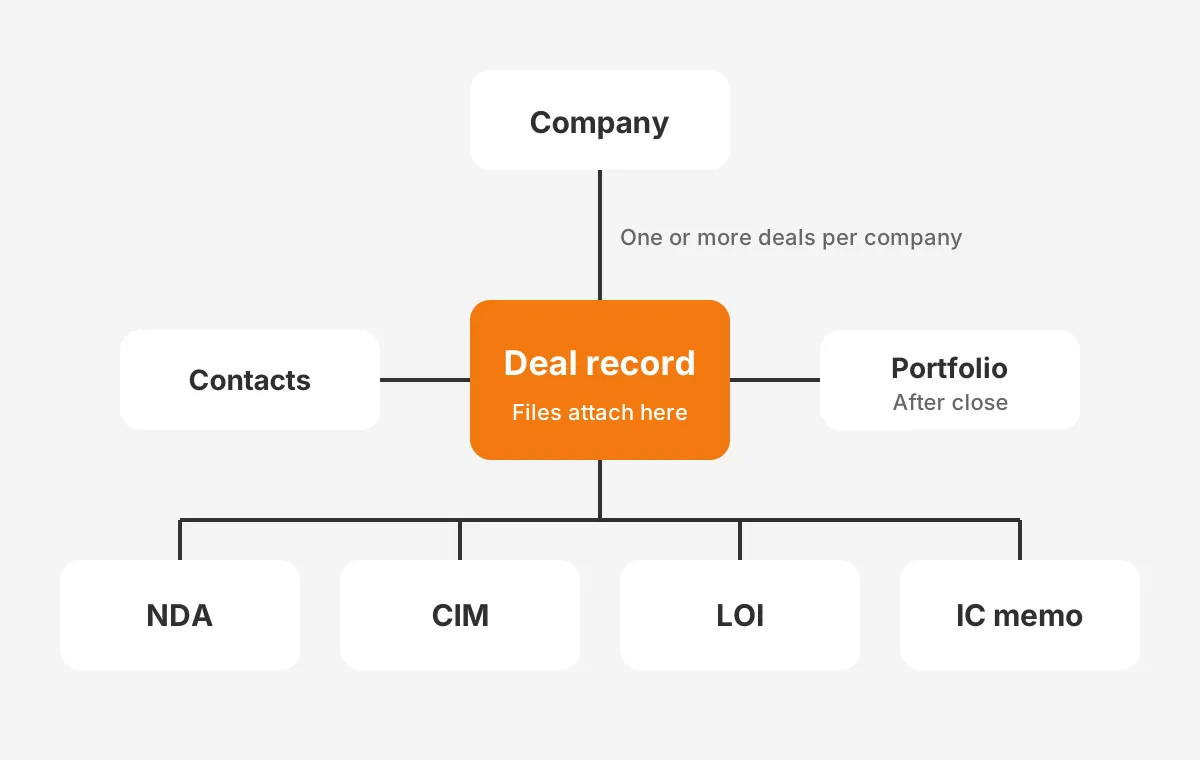
This structure answers a common question: should a CIM sit on the company or on the deal? Put it on the deal. A company sold twice will have two CIMs, and each belongs to its own process and deal stage.
Fund and LP documents follow a separate path. Keep them out of deal folders, even when you link CRM records to deal documents. Subscription papers and side letters attach to fund and investor records, not deals. The LP data migration guide covers how those records move during a CRM switch.
How do you link CRM records to deal documents?
A firm can link CRM records to deal documents through native attachments, reference links or automated deal folders. Most PE firms should link CRM records to deal documents by reference or through automated folders.
Each method answers the question of how to link documents to CRM records in a different way. The choice depends on file volume, security rules and where deal documents should be stored for the long term.
Native file attachments
Native attachments are the simplest way to link CRM records to deal documents. Users attach files to CRM records from a computer, and the CRM stores a copy. This works for a small team with low volume. It creates storage costs and version problems once diligence starts.
Reference links to a document system
Reference links keep the file in SharePoint Online, Box or Google Drive and show it on the record. The CRM stores a pointer, not a copy. Users always open the latest version, and permissions stay in the document system.
Automated deal folders
Automated folders are the third way to link CRM records to deal documents. When a new deal record is saved, workflow automation creates a matching deal folder and links it. Files dropped in the folder then appear on the record without any manual document linking.
| Method | Where the file lives | Version control | Best fit |
|---|---|---|---|
| Native attachments | Inside the CRM | Manual, copies drift | Small teams, low volume |
| Reference links | Document system | Always the latest file | Most PE firms |
| Automated folders | Document system, one folder per deal | Latest file, fixed structure | Firms with steady deal flow |
CRM document management through file attachments looks simple at first. It breaks when an associate uploads "CIM_v3_final" and a partner opens "CIM_v2". Reference links and automated folders avoid that split because only one copy exists.
Unboxx builds these connections as part of its CRM integration services, including folder automation between the CRM and SharePoint.
How do Salesforce, Dynamics 365, HubSpot and DealCloud compare?
All four platforms can link CRM records to deal documents, but each uses a different mechanism and has different limits. The details below come from each vendor's own documentation.
Salesforce Files Connect
Salesforce Files Connect links Salesforce records to Google Drive, SharePoint Online, OneDrive for Business and Box. The Files Connect implementation guide describes two modes. Copy mode stores a copy in Salesforce. Reference mode points to the external file and always shows the latest version.
Reference mode has trade-offs. SharePoint and OneDrive files cannot be previewed inside Salesforce, and downloads need access in the external system. Users need the Files Connect Cloud permission, granted through a profile or permission sets.
Dynamics 365 SharePoint integration
The Dynamics 365 SharePoint integration stores files for a record in a SharePoint document library. The SharePoint site must sit in the same Microsoft 365 tenant as the Dynamics environment. Admins turn it on per table under document management settings.
HubSpot SharePoint integration
The HubSpot SharePoint integration lets users attach up to 20 SharePoint or OneDrive items to each record. It supports OneDrive for Business only. HubSpot's Google Drive integration allows up to 25 Drive files per record.
Both HubSpot integrations offer workflow actions that create a folder for a record. Those actions need a Professional or Enterprise subscription.
DealCloud cloud storage widget
Intapp DealCloud is private equity deal management software built for deal teams. Its DealCloud cloud storage widget supports SharePoint, Box and Dropbox. Intapp's examples include opening NDAs stored in Box from a deal page.
| Platform | Mechanism | Supported stores | Stated limit or rule |
|---|---|---|---|
| Salesforce | Files Connect, copy or reference | SharePoint Online, OneDrive for Business, Google Drive, Box | No preview for SharePoint or OneDrive files |
| Dynamics 365 | SharePoint document management | SharePoint Online | Same Microsoft 365 tenant, 1:N relationship |
| HubSpot | SharePoint and Google Drive apps | SharePoint, OneDrive for Business, Google Drive | 20 SharePoint items or 25 Drive files per record |
| Intapp DealCloud | Cloud storage widget | SharePoint, Box, Dropbox | Upload, tag and search from the deal page |
A Box integration works with Salesforce and DealCloud through these native options. Firms on other deal management software usually reach Box through an integration platform or an app such as CloudFiles. For platform-level advice, see the CRM for private equity page.
How should deal folders and file names look?
Deal folders should follow one fixed template, and file names should follow one file naming convention. A predictable folder structure is what makes reference links useful, because users know where each file sits.
The answer to how to organize deal documents starts with the folder path. A pattern that works for most firms is Deals, then the company name, then the deal name with year. CloudFiles describes a similar Account and Opportunity path for Salesforce.
Inside each deal folder, create the same six subfolders every time:
- 01 Sourcing, for the teaser and NDA.
- 02 Screening, for the CIM and first model.
- 03 IC, for the IC memo and its appendices.
- 04 Offer, for the LOI and markups.
- 05 Diligence, for the QoE and adviser reports.
- 06 Closing, for signed agreements.

File names should carry the date, the company, the document type and the version. An example is "2026-11-03 Acme Plastics CIM v1". Sorting by name then sorts by date, which helps document version control.
Metadata makes the folders searchable after you link CRM records to deal documents. Tag each file with deal stage and document type in the document system. DealCloud's widget supports tagging, and SharePoint libraries support custom columns for the same purpose.
Who should see which deal documents?
Only the deal team and named approvers should see a live deal's documents. Access control should sit in the document system. The CRM link should respect it rather than copy files to a wider audience.
Reference links help here, because they link CRM records to deal documents without copying them. With Salesforce Files Connect in reference mode, a user without SharePoint access cannot download the file. HubSpot's SharePoint app works the same way: each user connects with their own login.
Restricted deals need a second layer inside the CRM. Affinity, for example, offers restricted opportunities visible only to an allow list. In Salesforce, sharing rules and permission sets do the same for a confidential deal record.
An audit trail matters for regulated firms. The document system should log who opened each file and when. For the record-keeping side of this, read audit and recordkeeping requirements for fund CRMs.
A short access rule set covers most cases:
- Deal folders inherit access from the deal team list.
- Partners and compliance get read access to every deal folder.
- Folders for passed deals become read-only after 90 days.
Where do virtual data rooms fit?
A virtual data room holds the seller's diligence files during a sale process. The CRM should link to it rather than copy it. The deal record stores the data room name, the access dates and the final index.
During due diligence, the data room belongs to the seller or its adviser. The buyer's team reads files there and writes its own analysis in the deal folder. That analysis, not the seller's raw files, is what the CRM must link.
At the end of the process, export the data room index if the seller allows it. Save it in the 05 Diligence subfolder and link it to the deal record. Each closed deal then keeps a full list of what the team reviewed.
Closed and passed deals still carry retention duties after you link CRM records to deal documents. Set a retention period in the document system for each deal folder. The CRM link stays in place, so the history remains findable after files move to an archive library.
What mistakes break document linking?
The most common mistake is linking files without a folder template. Teams that link CRM records to deal documents ad hoc collect links to personal drives and old copies.
Five mistakes appear again and again in PE CRM projects:
- Copying files into the CRM, so two versions of the CIM drift apart.
- Linking to personal OneDrive folders that disappear when an associate leaves.
- Giving the whole firm access to every deal folder by default.
- Skipping the deal stage field, so no one can filter documents by stage.
- Linking every historical file, which buries the useful ones.
Each mistake has a simple rule that prevents it. Link CRM records to deal documents only from shared libraries, never from personal drives. Store one copy of each file. Let the deal team list set access.
A second group of mistakes is about ownership. Someone must own the folder template and the integration settings. In most firms that is the CRM administrator or the operations lead, not the deal team.
Without an owner, the structure decays as firms link CRM records to deal documents across new deals. New subfolders appear, names drift and links break when folders move. A quarterly check of ten random deal records catches this early.
The last mistake is measuring nothing. Track two numbers each month. The first is the share of open deals with a linked deal folder. The second is the share with a linked NDA. Both should reach 100% for active deals.
What are the rollout steps?
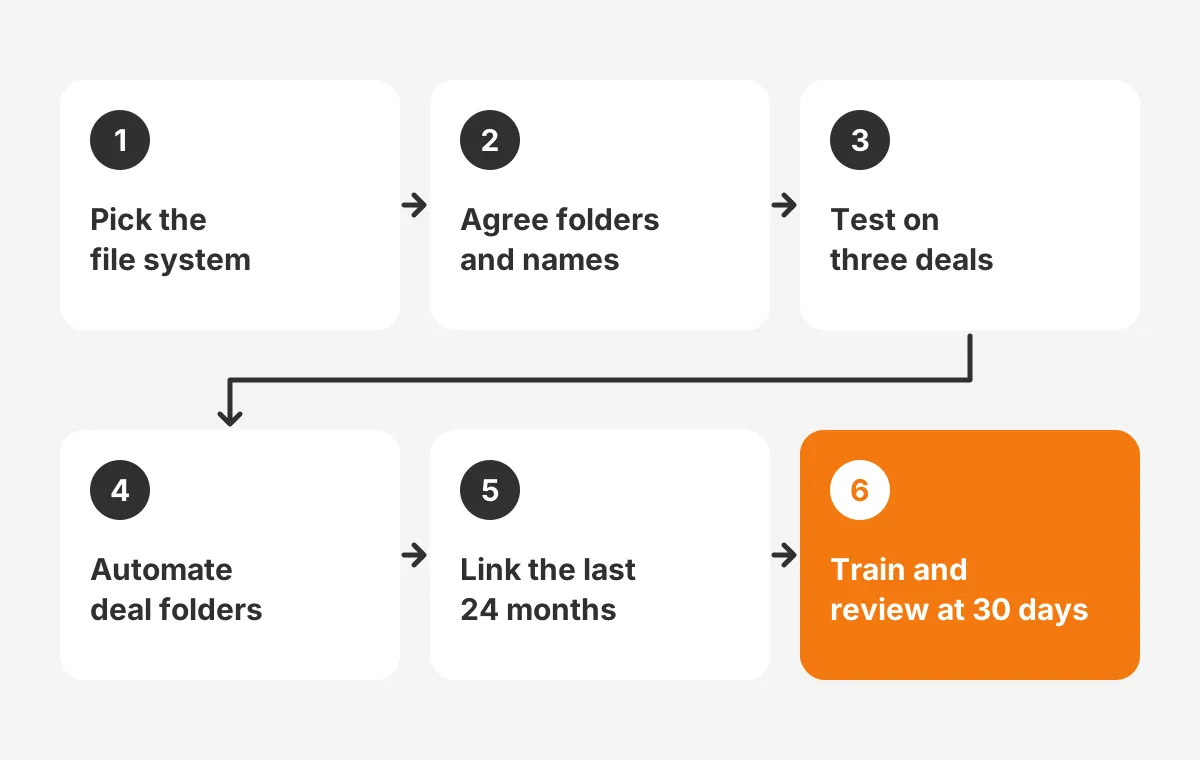
A PE firm can link CRM records to deal documents in six steps over four to eight weeks. The steps below assume an existing CRM and an existing document system such as SharePoint or Box.
- Choose the document system of record and confirm it fits the CRM.
- Agree the folder template and file naming convention with deal leads.
- Configure the integration and test it on three live deals.
- Add workflow automation that creates a deal folder at the first deal stage.
- Link historical deals, starting with the last 24 months of activity.
- Train the deal team and review usage after 30 days.
The four-to-eight-week range is an example plan for a mid-sized firm, not a benchmark. Timing depends on the number of historical deals and how clean the existing folders are.
Historical files take the longest time when firms link CRM records to deal documents. Older files often sit in personal drives. Agree a cut-off date and link only what the team will use again. Without a cut-off, the team ends up filing documents no one opens.
Firms with deeper CRM issues should fix the basics first. The private equity CRM questions guide covers how to fix portfolio check-ins and stale records before adding document links.
Frequently Asked Questions
Can a PE firm store NDAs in a CRM?
Yes, a firm can store NDAs in a CRM, but a reference link is safer than a copy. Keep the signed NDA in SharePoint or Box and link it to the deal record. Add the expiry date as a field. Reminders can then flag NDAs close to expiry.
Where should deal documents be stored?
Deal documents should be stored in one document system such as SharePoint Online, Box or Google Drive. The CRM then links each file to the right deal record. This keeps one copy of each file, applies one set of permissions and gives one version history.
How long does document linking take to set up?
In an example plan, a firm with a CRM and SharePoint sets up document linking in four to eight weeks. Configuration takes days. The rest goes to the folder template, tests on live deals and historical files from the last two years.
Does a PE CRM replace a document management system?
No, a PE CRM does not replace a document management system. The CRM tracks companies, deals, contacts and activity. The document system stores and versions the files. Linking the two gives the deal team context and files in one place without duplicating storage.
What happens to documents when a deal closes?
When a deal closes, the deal folder becomes read-only and moves under the portfolio company. The CRM links stay on the closed deal record. New post-close files, such as the 100-day plan and board packs, go into a separate portfolio folder.
Ready to link CRM records to deal documents?
A firm should start to link CRM records to deal documents with three live deals and one folder template. Prove that the team finds files faster, then add automation and historical deals. Unboxx designs this setup as part of its fund CRM work and CRM for private equity firms projects.
To plan the integration for your CRM and document system, schedule a consultation with Unboxx. The team will map your deal data model, folder template and access rules before any build starts.
Let's create something out of this world together.
Have a project in mind? Contact us for expert design and development solutions. Let's discuss how we can help grow your business.
Ready to Unboxx Your Potential?
Build smarter systems. Automate faster. Scale confidently.